
Overview
This article provides a step-by-step guide on the initial configuration of the Master Gateway within the G-SDK environment. Please note that this guide focuses on the setup process; for detailed operational instructions and advanced management, please refer to the official G-SDK Manual.
- Installation Link: https://supremainc.github.io/g-sdk/master/install/
- Quick Start Guide: https://supremainc.github.io/g-sdk/python/quickMaster/
1. Issuing a License
To activate the Master Gateway, you must first obtain a valid license. There are two primary types of licenses available:
Trial License: A temporary license intended for evaluation and testing purposes. It allows users to explore the features of the Master Gateway for a limited period before committing to a full deployment.
https://supremainc.github.io/g-sdk/master/install/#trialFull License: A permanent license for production environments. This license is issued based on your specific project requirements and provides unrestricted access to the Gateway's capabilities.
https://supremainc.github.io/g-sdk/master/install/#full-license
2. Generating Certificates
Security is a core component of the G-SDK architecture. The Master Gateway requires a set of certificates to establish secure, encrypted communication channels.
For a deep dive into the technical generation process, please refer to the G-SDK Certificate Documentation.
To use the Master Gateway, you must issue three essential certificate bundles:
Server Certificate: Validates the identity of the Master Gateway server.
Tenant Certificate: Manages logical separation and authentication for specific tenants.
Gateway Certificate: Ensures that only authorized gateways can interact with the system.
3. Connecting the Device Gateway
Once the Master Gateway certificates are ready, you must establish a connection with the Device Gateway. The Master Gateway utilizes mutual authentication (mTLS) to ensure a high level of security.
Copying Master Gateway Certificates
To authorize a Device Gateway to connect to the Master, you must copy specific certificates generated by the Master Gateway to the Device Gateway's local environment. This step acts as a "permission" handshake, proving the Device Gateway has the right to communicate with the Master.
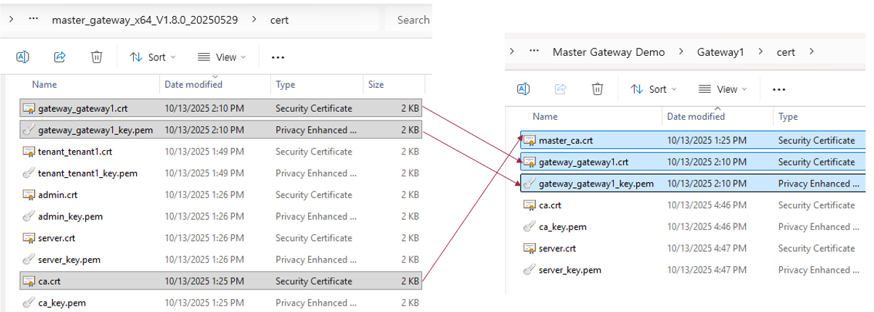
Modifying Device Gateway Configuration
To finalize the connection, you need to update the config.json file on the Device Gateway side. Ensure the network address of the Master Gateway and the paths to the copied certificates are correctly mapped in the configuration.
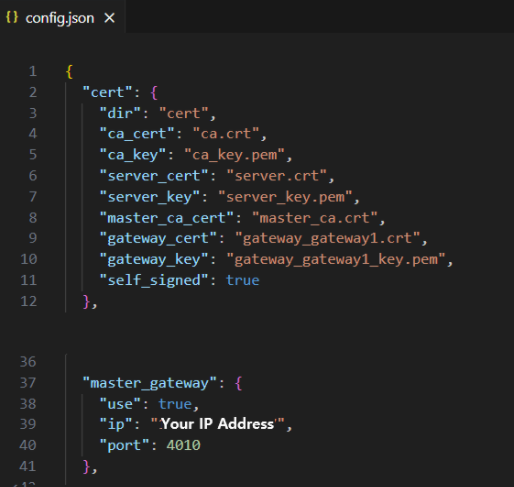
4. Running the Master Gateway and Device Gateway
After the configuration is complete, you can execute both the Master and Device Gateway services.
Important!
Simply running the executables does not mean the two gateways are instantly linked. To establish the initial connection, you need to create a Tenant and manually register/connect the Device Gateway to the Master Gateway instance. Once the Tenant association is validated, the status will reflect a successful connection.