
Overview
After upgrading the BioStar 2 Device SDK from an earlier version to v2.6.0 or later, the application may throw a System.DllNotFoundException in C# using the BioStar 2 Device SDK.

The error "Unhandled Exception: System.DllNotFoundException: Unable to load DLL 'BS_SDK_V2.dll': The specified module could not be found." occurs when Windows fails to load 'BS_SDK_V2.dll' .
This document describes resolutions by BioStar 2 Device SDK version for issues that may occur in the following cases:
- The BS_SDK_V2.dll is missing, or
- Other dependency DLL files required by BS_SDK_V2.dll are missing.
- The required Microsoft Visual C++ Redistributable is not installed.
Starting from BioStar 2 Device SDK v2.8.2, the OpenSSL library was updated. The dependent DLL files were updated accordingly.
Verify the BioStar 2 Device SDK version before applying the resolution described below.
Resolution
Affected version: Version 2.8.2 or later versions
To run an application built with the BioStar 2 Device SDK, it is required that the folder present the following DLL files:
The following example is for a 64-bit environment.
- BS_SDK_V2.dll
- libcrypto-1_1-x64.dll
- libssl-1_1-x64.dll

Note
With this updated SDK version, you do not need to include the old OpenSSL library files anymore:
- libeay32.dll
- ssleay32.dll
If any of these DLL files are missing, the error will occur. Please ensure that all these DLL files are present in the application's folder.
After all required DLL files are present, but the error still occurs, check your BioStar 2 Device SDK version and the Visual C++ Redistributable described below.
Starting from BioStar 2 Device SDK v2.8.2, the OpenSSL library has been updated.
Please install the Microsoft Visual C++ Redistributable 2015, which provides the vcruntime140.dll file required by the SDK.
Download link:
https://www.microsoft.com/en-US/download/details.aspx?id=48145
BioStar 2 Device SDK revision note: v2.8.2
http://kb.supremainc.com/bs2sdk/doku.php?id=en:release_note_282
Notes for Sample Code
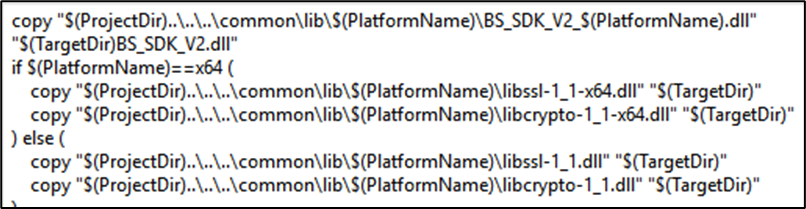
When using the BioStar 2 Device SDK sample code, the DLL files are copied through the Pre-Build event in the Visual Studio build settings.
Please check whether the files are correctly located in the specified folder and verify that the directory path and commands in the Pre-Build event are properly configured.
Detailed instructions on setting up the development environment can be found at the following link.
https://kb.supremainc.com/bs2sdk/doku.php?id=en:getting_started#building_a_development_environment
Affected version: Version 2.6.0 to 2.8.1
To run an application built with the BioStar 2 Device SDK, it is required that the folder present the following DLL files:
- BS_SDK_V2.dll
- libeay32.dll
- libssl32.dll
- ssleay32.dll

If any of these DLL files are missing, the error will occur. Please ensure that all these DLL files are present in the application's folder.
After all required DLL files are present, but the error still occurs, check your BioStar 2 Device SDK version and the Visual C++ Redistributable described below.
BioStar 2 Device SDK v2.8.1 and earlier rely on the OpenSSL 1.0.2n libraries.
Please install the Microsoft Visual C++ Redistributable 2013 (x86), which provides the msvcr120.dll file required by the SDK.
Download link:
https://www.microsoft.com/en-us/download/details.aspx?id=40784
Notes for Sample Code
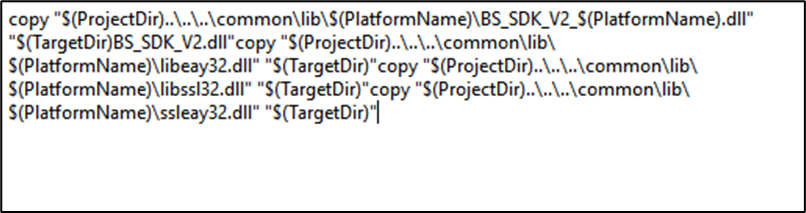
When using the BioStar 2 Device SDK sample code, the DLL files are copied through the Pre-Build event in the Visual Studio build settings.
Please check whether the files are correctly located in the specified folder and verify that the directory path and commands in the Pre-Build event are properly configured.
Detailed instructions on setting up the development environment can be found at the following link.
https://kb.supremainc.com/bs2sdk/doku.php?id=en:getting_started#building_a_development_environment
If the issue persists
If the issue persists even after checking the DLL files and the required Visual C++ Redistributable (Affected version section), please collect the following information and contact the Suprema technical support team:
1. Screenshot of the computer properties
Screenshot of the System > About page that shows Windows system type (32-bit or 64-bit)

2. Screenshot of Microsoft Visual C++ Redistributable is installed

3. Screenshot of the folder containing DLL files used by the application

These details will help us verify your OS, SDK version, runtime libraries, and any unexpected differences in system DLLs which may cause the error.