
Updated: Sep 11, 2026
Reference: BioStar Device SDK v2.9.12
Overview
This article explains how to configure and retrieve image logs using BioStar Device SDK.
The image log feature captures images using the device's camera when specified events occur, allowing users to visually verify those events.
The sample code (BSDemo) is included in the BioStar Device SDK package, available from the Suprema Download Center. For the complete sample implementation, refer to the Get image log menu under LogControl.
How to Configure and Retrieve Image Logs
To configure and retrieve image logs using BioStar Device SDK, follow the steps below.
Step 1. Check Image Log Support
Before configuring image log capture, check whether the connected device supports this feature.
Call the BS2_GetDeviceInfo API and check the imageLogSupported field in the returned BS2SimpleDeviceInfo structure.
BS2_GetDeviceInfo API: https://kb.supremainc.com/bs2sdk/doku.php?id=en:bs2_getdeviceinfo
BS2SimpleDeviceInfo: https://kb.supremainc.com/bs2sdk/doku.php?id=en:device_api#bs2simpledeviceinfo
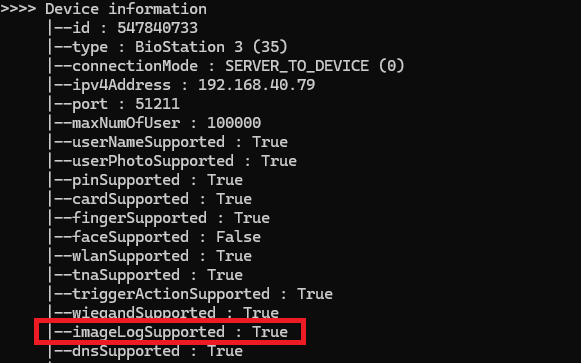
If imageLogSupported indicates support (True), the device supports image logging. You can then configure the device to capture images when specified events occur, as described in the following steps.
Step 2. Configure Image Log Capture
Each image log filter consists of a main event code and a schedule. If needed, a sub-event code can also be specified to narrow the filter to a specific event. The main event code specifies which event logs are subject to image capture, and the schedule determines when the filter is active.
Define the image log filters using the BS2EventConfig structure by setting mainEventCode and scheduleID. To filter by a specific sub-event, also set subEventCode and set subCodeIncluded to true. Then, call the BS2_SetEventConfig API to apply the configuration to the device.
Applying the configuration does not immediately capture an image. An image is captured when an event matching the configured event condition occurs while the specified schedule is active.
BS2_SetEventConfig API: https://kb.supremainc.com/bs2sdk/doku.php?id=en:bs2_seteventconfig
BS2EventConfig: https://kb.supremainc.com/bs2sdk/doku.php?id=en:configuration_api#bs2eventconfig
Step 3. Retrieve and Save Image Logs
Image logs are associated with event logs on the device. To retrieve an image, first identify the event log that contains it.
Call the BS2_GetLog API to retrieve event logs. For each returned BS2Event, check the image bit to determine whether an image is available.
The BS2_GetLog API retrieves up to the number of event logs specified by the amount parameter, starting from the given log record ID. If the target event is not included in the returned results, call the API again with a starting ID closer to that event.
For an event that contains an image, pass its ID to the BS2_GetImageLog API. The API returns the image data, which your application can save to a file for viewing.
After using the returned image data, release the allocated memory by calling BS2_ReleaseObject.
BS2_GetLog API: https://kb.supremainc.com/bs2sdk/doku.php?id=en:bs2_getlog
BS2Event: https://kb.supremainc.com/bs2sdk/doku.php?id=en:log_management_api#bs2event
BS2_GetImageLog API: https://kb.supremainc.com/bs2sdk/doku.php?id=en:bs2_getimagelog
Example
The sample code checks the retrieved events for images and saves each available image using the corresponding event ID as the filename.
Note
The sample code calls the BS2_ClearLog API before retrieving logs, which deletes all event logs on the device. Check this before running the sample code on a device that holds logs you need.
The sample code configures image capture for the DEVICE_TCP_CONNECTED event. In the screenshot above, event ID 89168 shows image[True], indicating that an image is available.
The sample code retrieves the corresponding image and saves it as 89168.png, as shown below.
As implemented, the sample code saves each image in the application's current working directory. Open the saved file to view the image captured for the corresponding event.
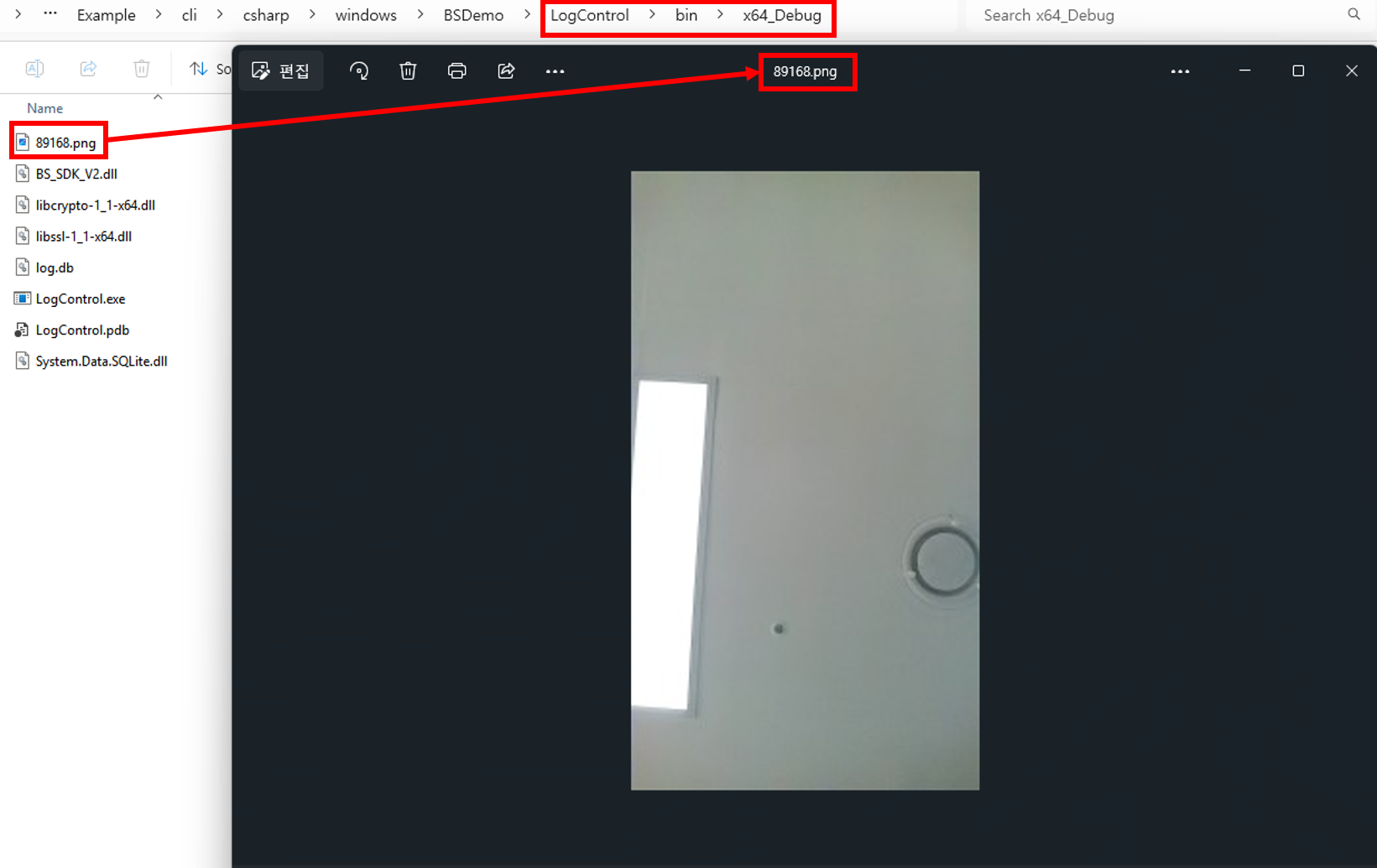
Example: Viewing the saved image log for event ID 89168