
1. Overview
BioStar 2 users who want to use mobile credentials can use Suprema Mobile Access powered by Airfob. Airfob is a cloud-based mobile access platform that manages and issues mobile credentials, allowing users to use their smartphones as access credentials with supported Suprema devices. In a standard mobile access environment, issued mobile credentials can be delivered to users and used through the Airfob application.
However, some customers may want to manage and use mobile credentials through their own mobile application instead of using the Airfob application. In this case, the Airfob In-App SDK can be integrated into the customer's mobile application to enable Airfob mobile credential functionality within the application.
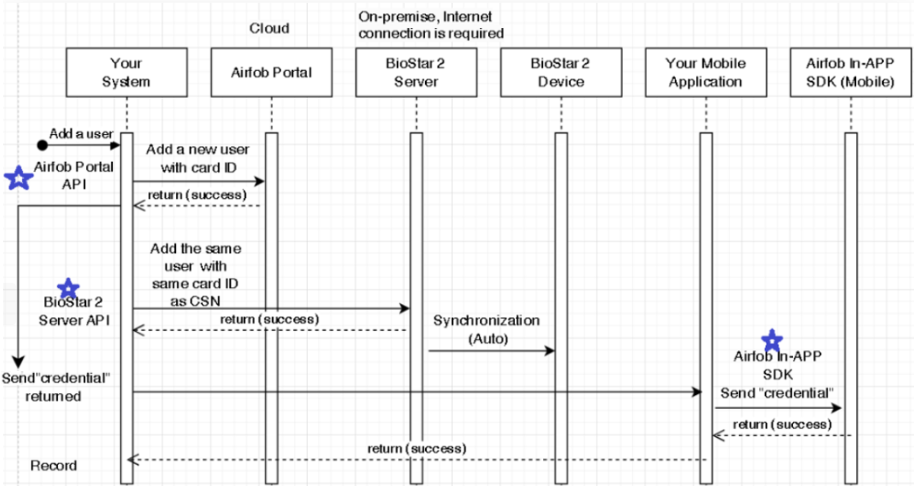
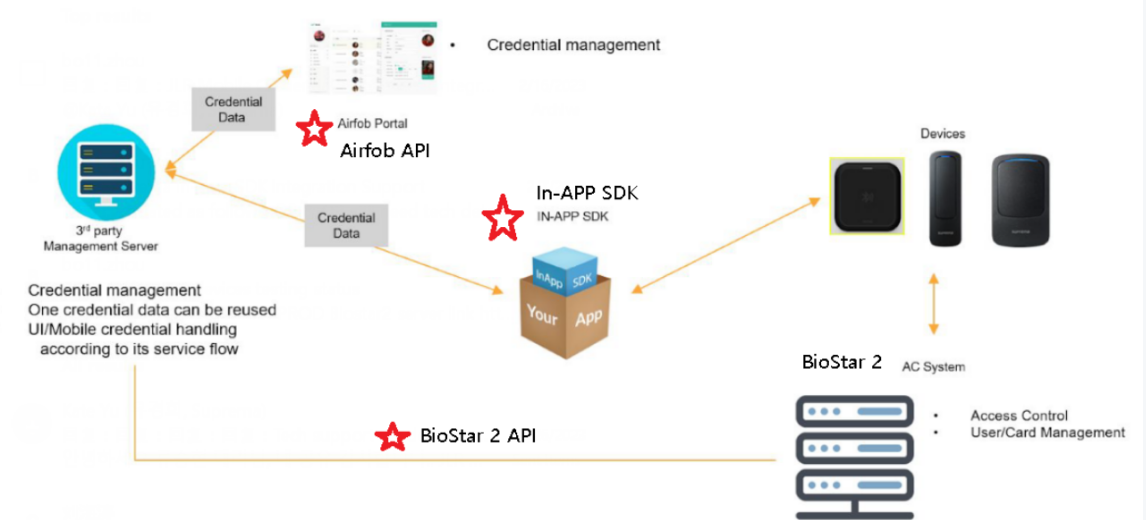
For system integration, the Airfob Portal API can be used to integrate the customer's system with Airfob for mobile credential-related operations, while the BioStar 2 API can be used to register the corresponding user and card information in BioStar 2. The user and card information can then be synchronized from BioStar 2 to the connected Suprema devices.
This article explains the overall integration architecture and the basic configuration required to integrate BioStar 2, Airfob Portal API, and Airfob In-App SDK when customers want to use mobile credentials through their own mobile application.
The following flow diagram provides an overview of how the Airfob In-App SDK is used in the overall integration process.
2. How to Test Airfob In-APP SDK
The integration consists of the Airfob cloud service, BioStar 2, the customer's system, the customer's mobile application, and the Airfob In-App SDK. The following provides a comprehensive guide on how to use the Airfob In-App SDK.
The screenshots below are based on BioStar 2, but the same process can also be followed in BioStar X.
1) Generate Airfob Portal and confirm the site ID
1.1 Visit https://www.airfob.com/
1.2. Go to [Administrator Login]>Airfob Portal (https://portal.airfob.com/en)

1.3 Sign in to your account after sign up
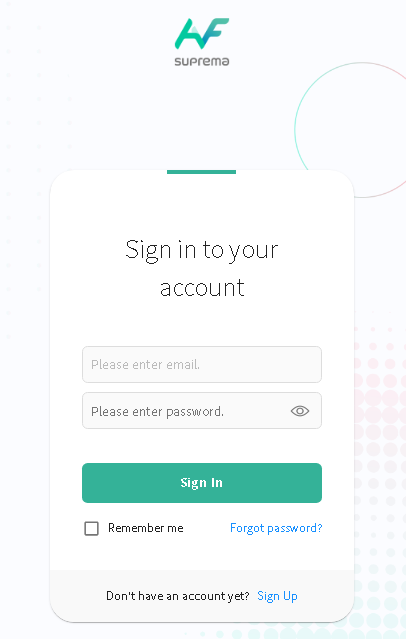
1.4 Create a site
This is important progress so that you can use Airfob In APP SDK.
If there are already existing mobile credential, please create a new site. 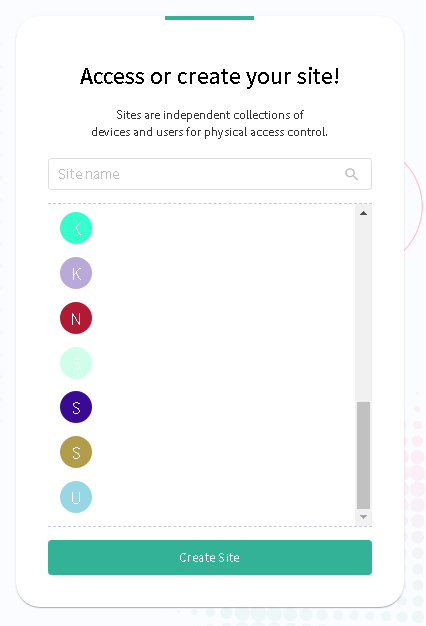
1.5 Click Settings>Confirm Site ID
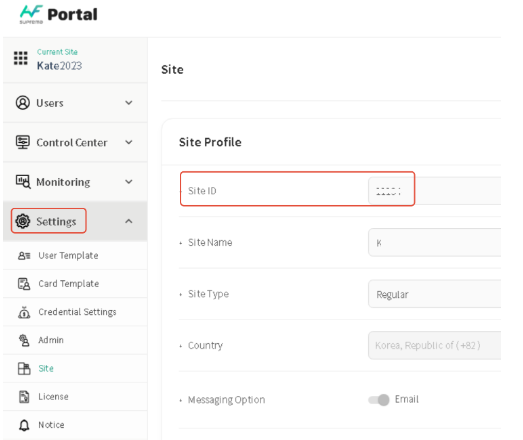
2) Request SDK Download
https://developers.airfob.com/sdk
2.1 Fill the Request Form
Fill in the Request Form and mention your site ID with #5 below so that they can allow you to use Airfob In APP SDK with a licensed library.
If you do not inform the site ID, you cannot use the Airfob In APP SDK.
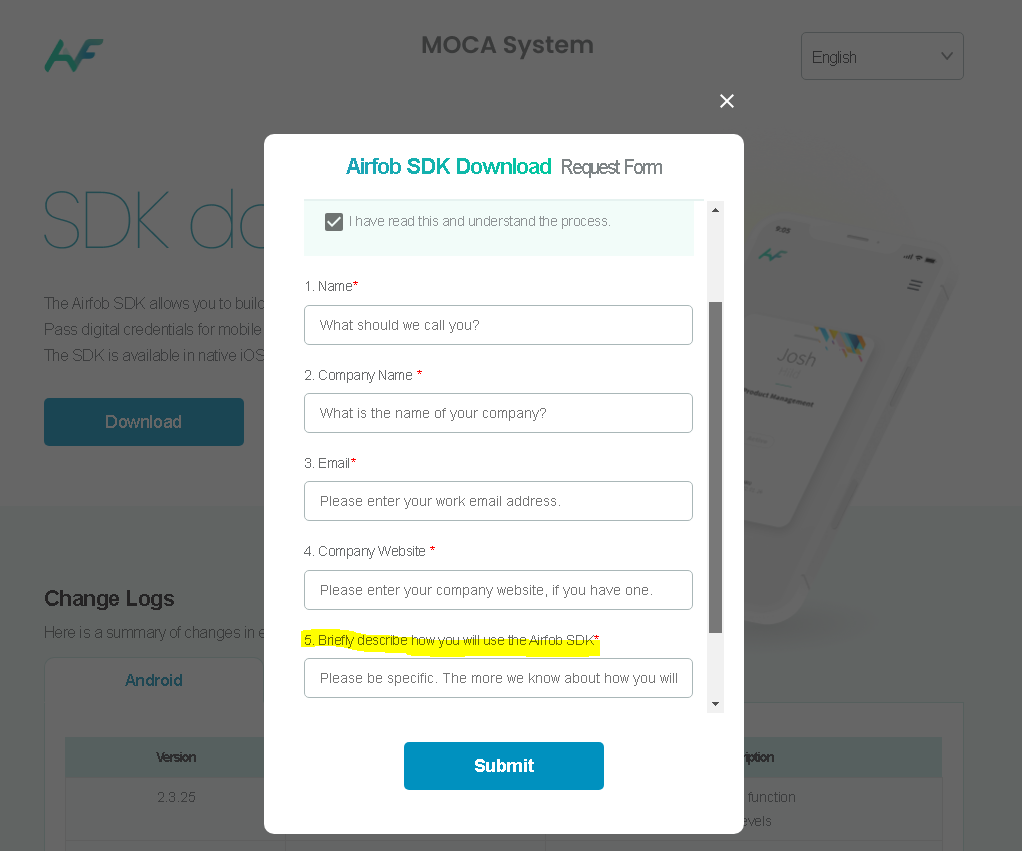
2.2 Wait until there is a download link from MOCA systems. (noreply@mocainc.com)
2.3 Confirm your email box
- The download link will expire in 48 hours.
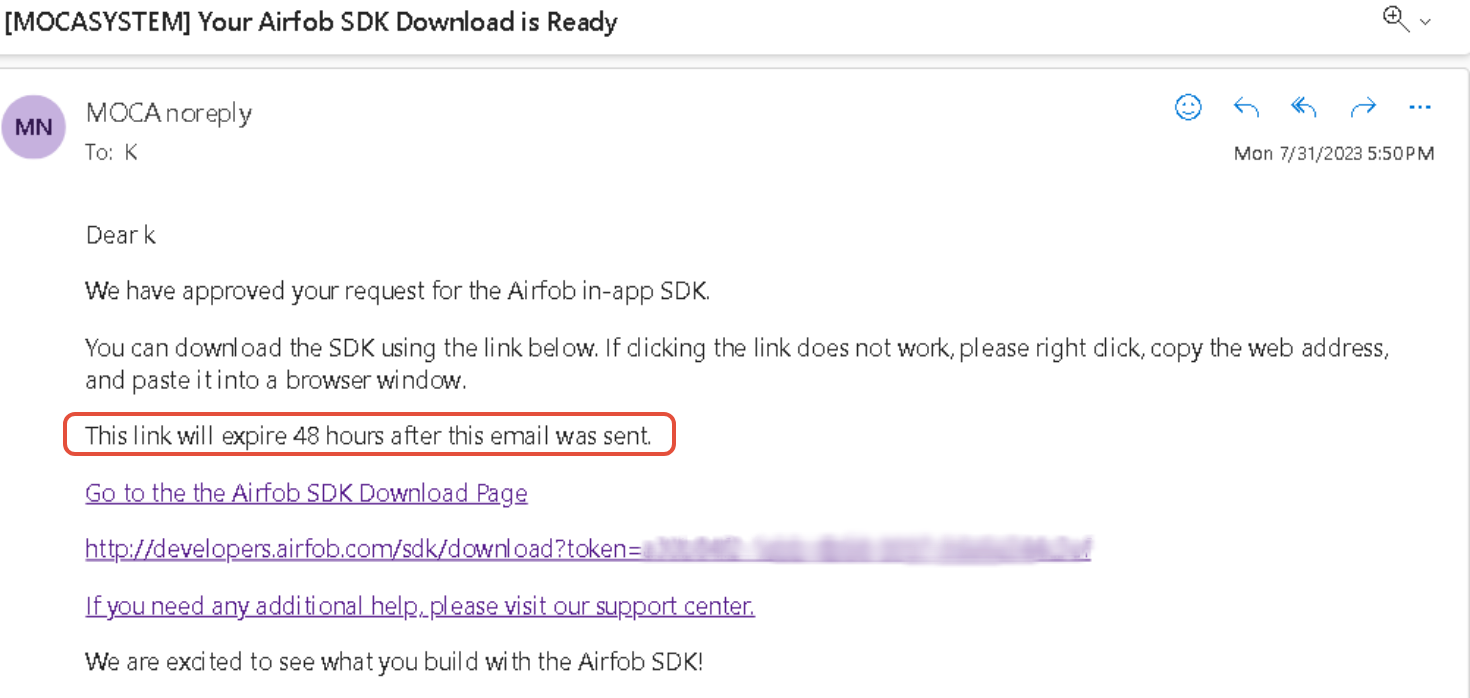
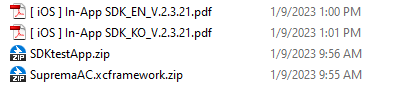
2.4 Download the SDKs for iOS and Android
Ex) AS-2.3.25.zip: The file name can be changed depending on the new version release.
Unzip file for Android

Ex) IS-2.3.21.zip: The file Name can be changed depending on the new version release.
Unzip file for iOS
3) Install BioStar 2 and connect a Suprema Device to BioStar 2
3.1 Connect Suprema device to BioStar 2
[Suprema Mobile Access] Supported Devices List of Mobile Access
3.2 Go to [Settings]>[MOBILE ACCESS]
3.3 Update the necessary items such as Site ID, Emails, and Password and click [Connect]
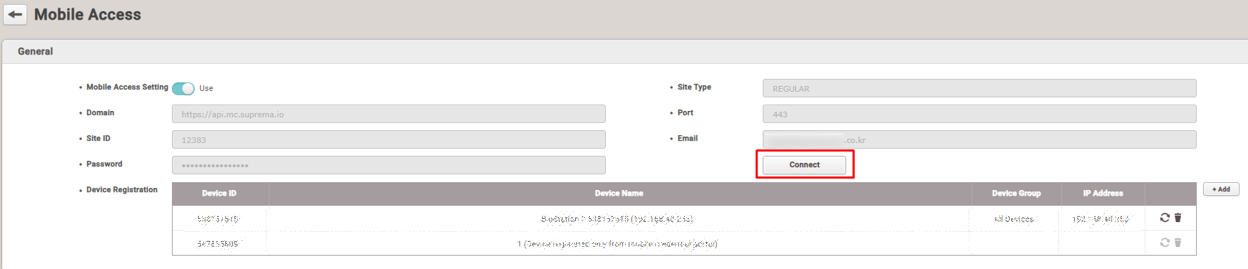
3.4 Register the connected devices
Click [+ Add] to add devices for Mobile Access. The devices registered in BioStar 2 will be displayed.
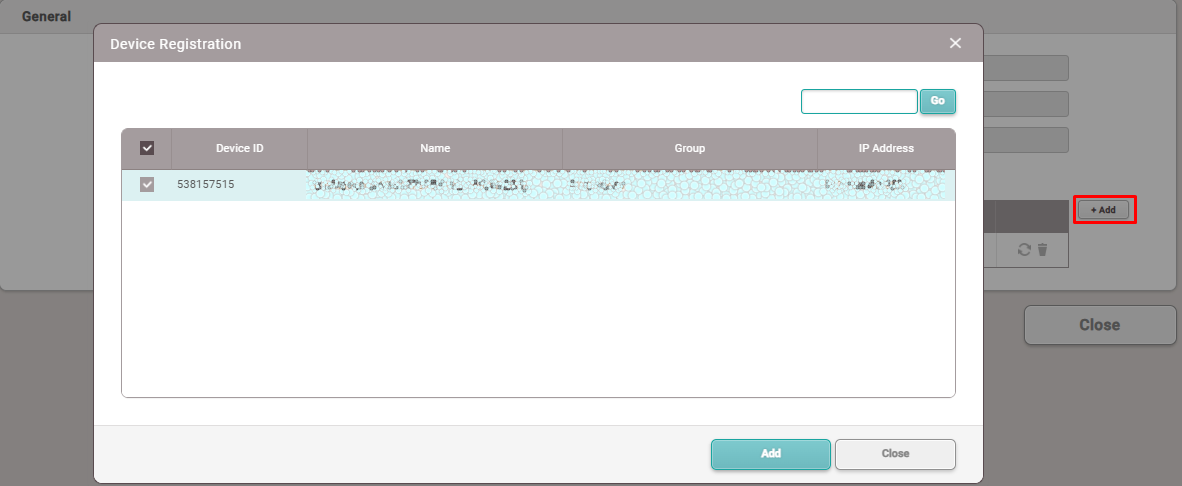
This progress will be sent the encrypted certificate from Airfob Portal to the connected BioStar 2 Devices
4) Start the API Integration & In-APP SDK Integration
Now, we will assign a CSN card to the user in BioStar 2 and create a Mobile Credential with the same card number as the CSN card through the Airfob Portal API.
[BioStar 2 API]
4.1 Call BioStar 2 API to generate a new user of BioStar 2.
(Alternatively, you can manually enter the card number in BioStar 2 and add the CSN card to the user.)
4.2 Call BioStar 2 API to generate CSN card of the new user above of BioStar 2.
> As soon as you update the user's card, the information will be synchronized to the connected devices.
Web manual of BioStar 2 API: Post Create Card (CSN)
When creating a card via the API, please make sure to check the Type. The Type should be set to 0 in order to create a CSN card.
[Airfob Portal API]
4.3 Call Login API
[POST] https://api.mc.mocainc.com/login
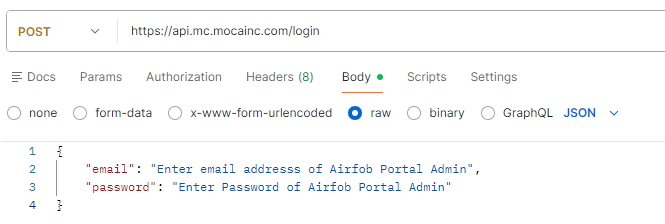
TIP!
Once you have successfully logged in, you will receive an "Access Token". When making other API calls, set the authentication type to Bearer Token and enter the obtained "Access Token" as the token value.

4.4 Call Airfob Portal API to generate the Mobile Card to Airfob Portal
[POST] https://api.mc.mocainc.com/sites/{siteId}/card-credentials
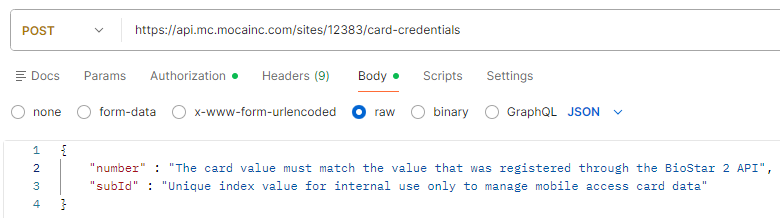
** For a Dynamic Site, "startDate" and "endDate" are also required fields and must be included.
Example:
Please note that emails will not be sent if you create it using a sub ID.
If you need a more detailed guide on this, please refer to the link below.
Suprema Connect: Tech Training: How to Use AirFob Portal API
Link: https://www.youtube.com/watch?v=aJDODugXW4E
*Confirm the response 200 and check the "credential" from the response body.
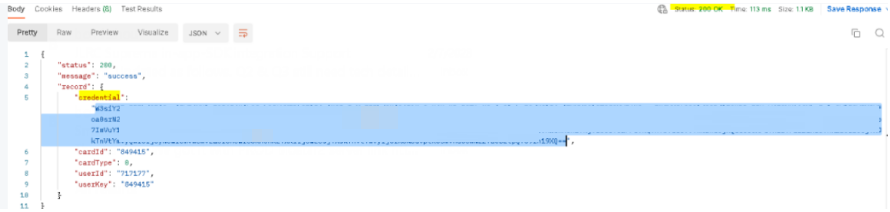
[Airfob In-APP SDK]
4.5 Copy the credential to the Airfob In-APP SDK.
** Below is an excerpt from the Airfob In-App SDK example. Please refer to it for reference only.
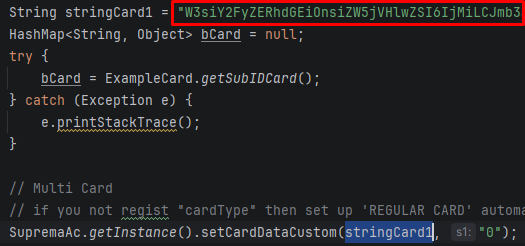
4.6 Scan your mobile app to Suprema device and confirm the result.
The illustration below is provided to help you understand how the Credential Data is used.
3. FAQ
Q1. Can we use Suprema device with another way?
A1. You can use Suprema device via Wiegand Output_Bypass Mode as long as you register the device to Airfob Portal through Airfob Pass Mobile APP.
Q2. Is there a rate limit for the Airfob Portal API?
A2. We recommend a rate of approximately 5 RPS(Requests Per Second). Please be aware that if there is a sudden spike in traffic, it may result in a 504 Gateway Timeout error.
Q3. How can I obtain a license for the Airfob In-App SDK?
A3. A license is required to use the Airfob In-App SDK. Please share the Site ID with your Suprema Sales representative and request the license.