
BioStar has made significant updates to the Active Directory (AD) Integration logic, particularly beginning in BioStar v2.9.10. These changes have introduced new behaviors that system integrators and administrators should understand. This article summarizes the major changes, common issues, and recommended configurations for successful AD integration.
Major Logic Changes Introduced in BioStar v2.9.10
BioStar v2.9.10 includes updated AD synchronization logic regarding SamAccountName. BioStar now performs stricter validation on SamAccountName, which must comply with BioStar’s internal User ID format rules regardless of whether you use it for mapping or not. This means it cannot have special characters such as '.'(dot). There are also a couple of other major logic changes starting BioStar v2.9.10. Please read the information below carefully for proper synchronization.
1. SamAccountName Format Requirements
A frequently reported issue after the recent updates is user synchronization failing due to invalid SamAccountName formats.
Required Format
BioStar user IDs cannot contain special characters such as:
.(dot)spaces
other symbols outside BioStar’s valid User ID specification
Therefore, if a user in AD has a SamAccountName with '.'(dot) or other special characters, the user may fail to synchronize.
Important Notes
BioStar validates SamAccountName even if you do NOT map it in synchronization setting.
Some clients observed that one user with a special character sometimes synchronizes successfully—this is a known behavior.
→ Only the first such user may sync. Subsequent users will not synchronize.
1a. Patch Available (Based on BioStar v2.9.11 & v2.9.12)
A patch is available to bypass this issue.
Please refer to the following article for more information on the patch and how to apply.
(NOTE: You need to be logged in to be able to access the article.)
1b. Field-Specific Behavior During Synchronization
Email, department, displayName
If these fields do not follow BioStar’s valid format rules, users will still synchronize.
However, the corresponding fields in BioStar will be empty.
User ID, SamAccountName
If these fields does not follow BioStar’s format,
→ The user will NOT synchronize.
2. User Group Synchronization Requirements
If you choose to synchronize specific user groups:
You must map the User Group in BioStar Active Directoy Settings Field Configurations.
If you set the mapping to None, AD synchronization will not occur.
You don't need to map User Group if you select All User Groups
For example, if you selected specific user groups like below,
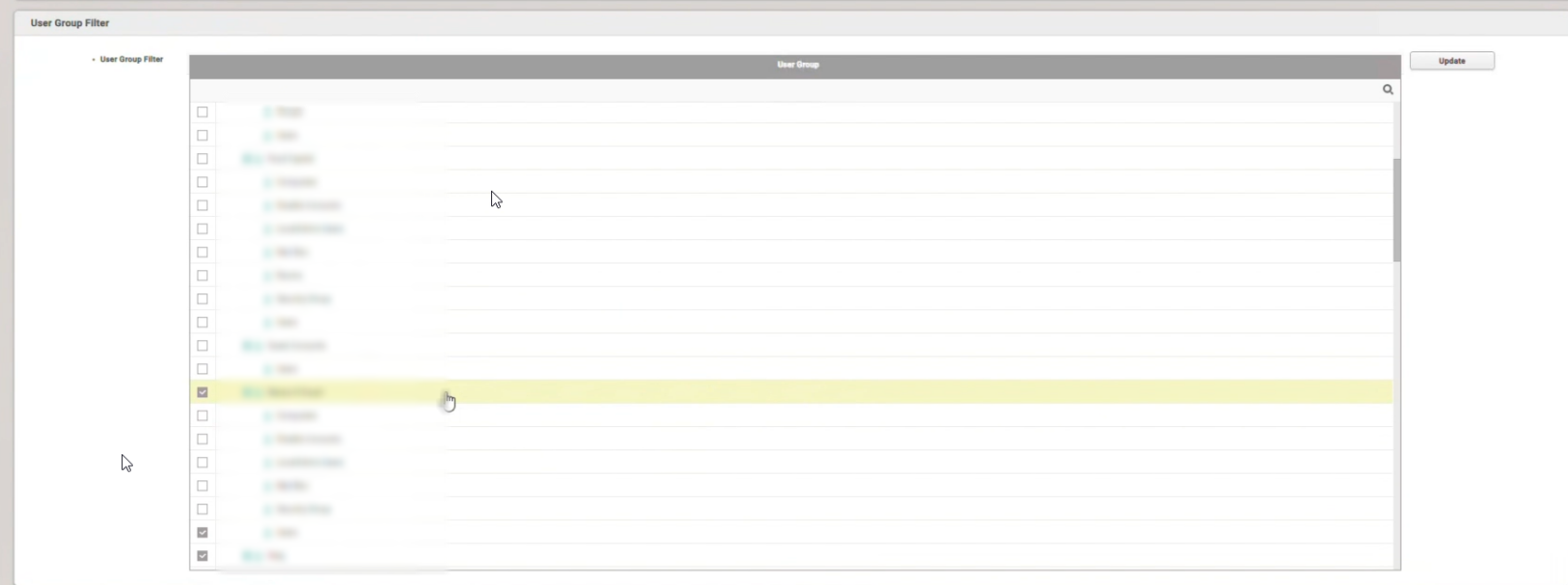
you need to map the user group. It cannot be set to None.

3. Changes in User Deletion Behavior
Before BioStar v2.9.8
Deleting a user in AD did not delete the user in BioStar after synchronization.
Starting from BioStar v2.9.10
If a user is deleted in AD, the next synchronization will also delete the user in BioStar.
If users exist in BioStar but do not exist in AD, those users will also be deleted automatically after sync.
How to Prevent Unwanted Deletions
BioStar provides an option for each user:
“Exclude from Active Directory Integration”
If this option is enabled for a user, they will not be removed even if they do not exist in AD and they won't be updated/impacted by AD synchronzation.
You can find the option in each user's details page:
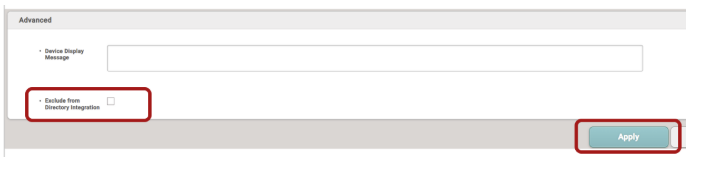
NOTE: Error Message Meaning
You may see the below error pop-up after trying to synchronize Active Directory.
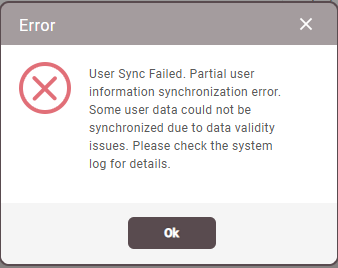
This does not mean that the entire synchronization has failed.
It means that synchronization has partially failed due to certain users having invalid values in the mapped fields.
If you have any additional questions or issues regarding Active Directory, please raise a ticket through our support page: Suprema Support Page
If you'd like more information on Active Directory Integration, please check out the following articles:
[BioStar 2] How To Configure Active Directory in BioStar2
[BioStar 2] Support to Log in to Biostar 2 with Active Directory Account