
The CLUe device is designed so that it can be assigned to a place and have the required access door settings configured in advance, even without opening the box.
However, for this reason, an initial registration process in the portal is required. To prevent indiscriminate or duplicate registrations, this process is restricted to branch administrators only.
Therefore, customers who have newly purchased a device must first verify that the CLUe firmware and certificates have been properly applied, and then request that the device be registered to the corresponding Suprema branch. Once the branch assigns the device to a disti or a place group, the device can thereafter be freely assigned and managed.
Register Device (Branch Admin Only)
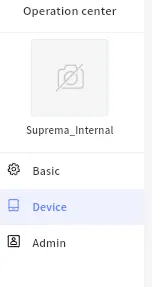
1. Move to Branch → Settings.

2. Go to Device tap
3. Enter a device SN to the add device field and click “Add”
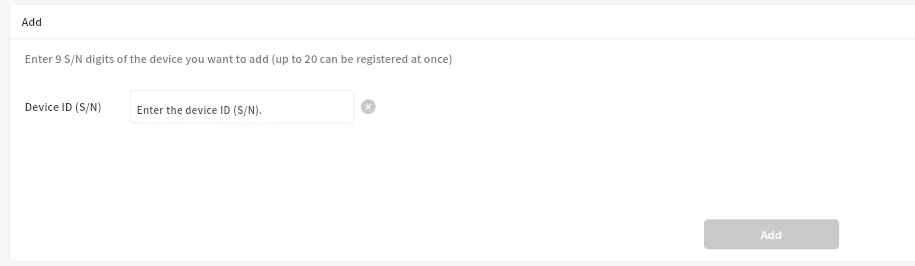
4. Then, the device shows up in the device list.

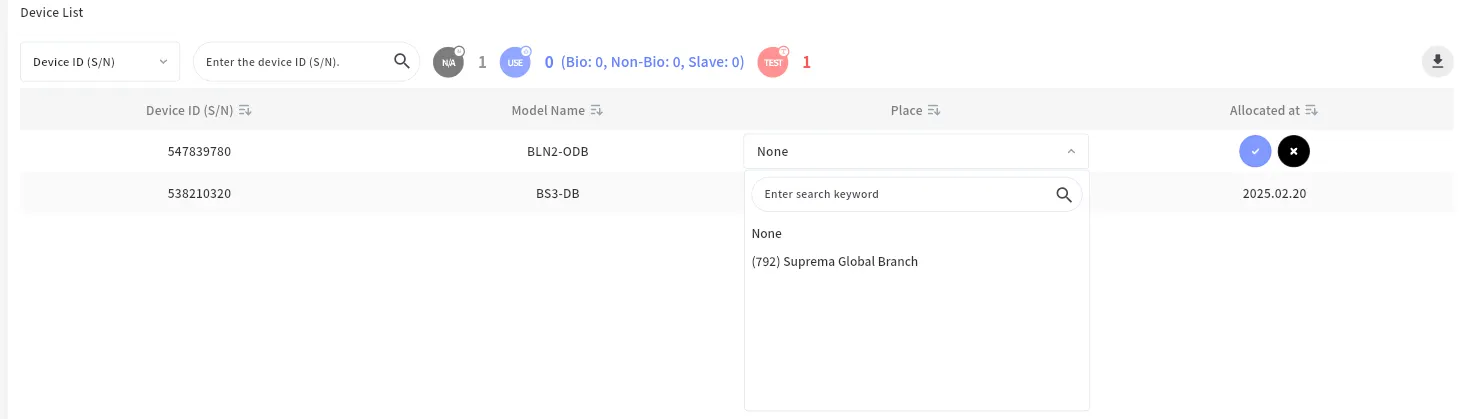
5. Click any of none filed to turn on Edit mode and select a place to assign.

6. Then, click confirm button below to apply.

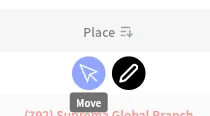
7. Place allocation is finished. Now, you can click each field and move to a place to set up the device and door.

Assign Device as Disti Admin
1. Move to Disti → Settings.

2. Move to Device Tap

From the disti level, branch admins can allocate devices assigned to them to sub-place groups or individual places. If the device you need to register is not visible in the list, please contact the relevant Suprema branch or headquarters.
3. Click the place group or place and select “edit” to assign to a place group or a place.

When the device is deleted, it’s automatically going back to the branch level device list as non-assigned device. If you delete it by accident, please ask the branch admin to reassign.
4. After allocation, it’s recommened to move to a place and add a door.
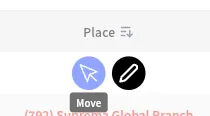
Please note that the disti level admin cannot see the uesr and monitoring tap as default following to privacy policy. If needed, please ask the place group/place admin to invite you to access them.
Assign Device as Place Group Admin
1. Move to Disti → Settings.

2. Move to Device Tap
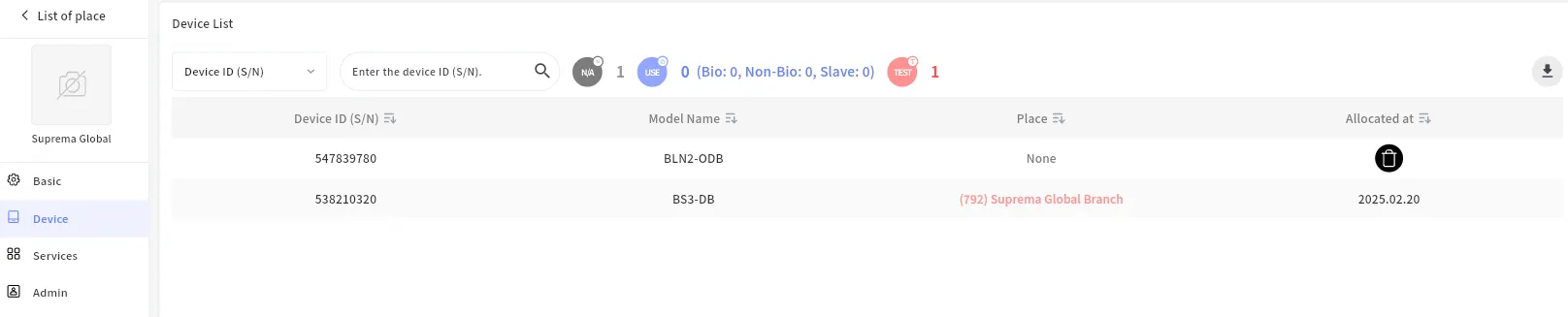
3. Click a place column and select a edit and assign a device to a place
4. After allocation, it’s recommened to move to a place and add a door.
Test Place Setting (Branch Admin Only)
Since subscription is based on the number of devices, it is necessary to distinguish test devices to exclude them from total.
To address this, the system allows Branch Admins or higher roles to designate a space as a "test place" in the place settings.
1. Move to Place Settings → Basic

2. Click Setting of Test Date and set test period.
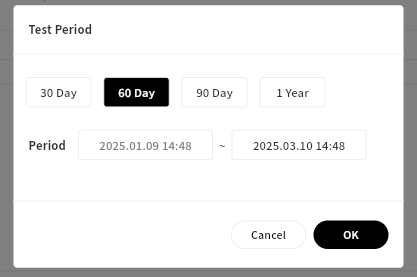
3. With custom setting, there’s no limit. You can set up to 9999.12.31 23:59
4. Once it’s set, you can check the test device in red color with its total number info
