
1. Document Information
1.1 Intended Audience
- Place Group Administrators — Register, edit, and delete vendor APIs; map credential types to APIs; propagate settings to child places
- Place Administrators — Review settings inherited from the place group and, if needed, apply per-place overrides
This manual assumes that the reader is an IT administrator familiar with HTTPS, HTTP status codes, Webhooks (HTTP POST), JSON, and JSONPath. Please coordinate the vendor API specification (URL, authentication headers, request/response JSON structure) with the vendor contact in advance.
1.2 Prerequisites
- You must be invited as an administrator to the target place group (or place) to access the menu.
- Obtain the vendor's authentication webhook URL (HTTPS required, receives HTTP POST) and any required authentication header values beforehand.
1.3 Key Terms
| Term | Description |
|---|---|
| Customer API Integration | An access method where, when a user presents a credential at a device, the credential data is sent to an external API operated by the vendor for validation |
| Credential | Face / Fingerprint / RF Card / User PIN / CLUe QR / Custom QR |
| Webhook URL | The HTTPS endpoint that the vendor server opens to receive authentication requests (HTTP POST, Content-Type: application/json) from CLUe |
| Request Header | Key/Value pairs sent along with the request for authentication and authorization (e.g., Authorization token) |
| Auto Field | A value in the request body that the system populates automatically. Select only the fields you need |
| Manual Field | A fixed value that the administrator enters manually to include in the request body |
| Judgment Criteria | A set of rules for interpreting the vendor's response as access granted or denied (judgment mode, success result key, success/failure message key) |
| Judgment Mode | An element of the judgment criteria. Choose one of: HTTP response code only / response body field only / combination of both |
2. Customer API Integration Overview
2.1 Feature Description
Customer API Integration is an access method that forwards credential data detected by CLUe devices to an HTTPS API operated by the vendor, and determines access granted/denied based on the response. This allows vendor-specific policies — such as access rights, attendance, and visitor management — to be directly reflected in CLUe access control.
- Different vendor APIs can be linked to each credential type (face, fingerprint, RF card, PIN, QR).
- You can verify integration behavior with a test call before saving the registration.
- CLUe only identifies and forwards the credential — the actual grant/deny decision is determined by the vendor API's response.
2.2 Supported Credentials
- Face
- Fingerprint
- RF Card
- User PIN
- CLUe QR
- Custom QR
2.3 Place Group and Place Responsibilities
| Level | Role | Responsibilities |
|---|---|---|
| Place Group | Place Group Administrator | Register / edit / delete vendor APIs, link APIs to credentials |
| Place | Place Administrator | Review inherited settings, apply per-place overrides if needed |
Propagation Rules.
- Saved at Place Group level → The same settings are immediately applied to all child places under that place group. Any per-place overrides are overwritten with the place group values.
- Saved at Place level → Applied to that place only. Other places and the parent place group are not affected.
3. Key Workflows
Customer API Integration consists of two main workflows: the configuration workflow (performed by administrators first) and the access event workflow (when users actually attempt access).
3.1 Configuration Workflow
These are the steps performed by the administrator. Each step is explained in detail from Section 4 onward.
[1] Select access method: "Vendor" or "Mixed / Advanced"     (Place Group)
     |    When selected, the "Customer API Integration" menu item is activated
     |    in the left navigation panel
     |
[2] Register an API in Customer API Integration               (Place Group)
     |    Basic Info → Custom Headers → Auto Fields → Manual Fields
     |      → Execute Test → Configure Judgment Criteria → Save
     |
[3] Link the registered API to each credential                (Place Group)
     |    On save, the same settings are automatically applied
     |    to all child places
     |
[4] (Optional) Per-place override settings                    (Place)
          Applied to that place only. Default uses
          the place group settings as-is
3.2 Access Event Workflow
After configuration is complete, this is the processing sequence when a user actually attempts access.
[1] User presents a credential at the device
        (Face / Fingerprint / RF Card / PIN / CLUe QR / Custom QR)
                |
                ↓
[2] Device → sends verification request to CLUe server
                |
                ↓
[3] CLUe server → sends verification request to vendor server
        (with registered Webhook URL, custom headers, auto fields,
         and manual fields)
                |
                ↓
[4] CLUe server determines access based on vendor response
        (grant/deny decision based on configured judgment criteria)
                |
                ↓
[5] Result returned to device
        (if the response includes a message, it is displayed
         on the device screen)
4. Step 1 — Select Access Method
Navigate to Service → Setting of access service on the place group screen.
4.1 Initial State
None.]- The
Access typeis set toNone. No settings are enabled in this state.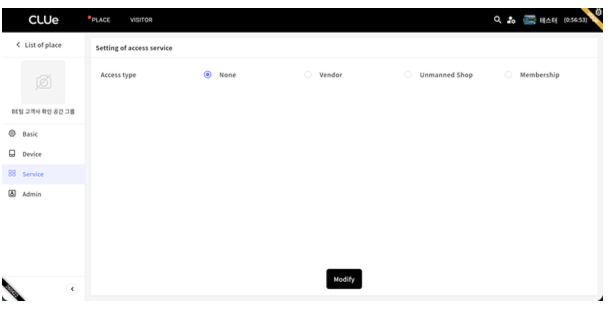
4.2 Selecting Vendor
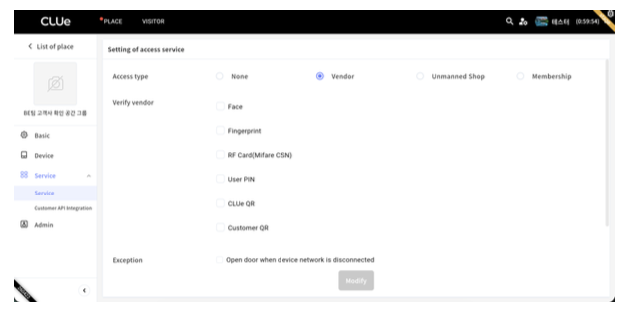
Vendor; the Verify vendor section appears at the bottom listing the 6 supported credentials.]- When you select
VendorunderAccess type, aVerify vendorsection appears at the bottom of the screen. - The
Verify vendorsection lists all 6 supported credentials. You will link a registered vendor API to each credential later. - At this point, the
Customer API Integrationmenu item becomes active in the left navigation panel.
TheCustomer API Integrationmenu is activated whenAccess typeis set to eitherVendororMixed / Advanced.
You do not need to save at this step. First, proceed to Step 2 to register the API you will link.
5. Step 2 — Register a Vendor API
Navigate to Service → Customer API Integration in the left navigation panel.
Registration limit. Up to 3 APIs can be registered per credential type. That is, across 6 types (Face, Fingerprint, RF Card, User PIN, CLUe QR, Custom QR), the place group can hold up to 18 APIs total. No additional APIs can be registered for a credential type that already has 3. The API actually used for each credential is selected in Step 3 (Section 6).
5.1 API List (Empty State)
- If no APIs have been registered yet, a guidance message is displayed in the center.
- Click the
+ Add APIbutton in the upper right to open the configuration panel.
5.2 Enter Basic Information
The configuration panel opens on the right side of the screen, with the Basic Information section at the top.
| Field | Description | Input Rules |
|---|---|---|
Name | A name to identify this integration | Required, max 64 characters |
Auth type | Select which credential this API will be used for | Required. One of 6 types. Cannot be changed after saving |
Webhook URL | Vendor Webhook URL | Required. Must start with https://, max 512 characters. http:// URLs cannot be saved |
Auth type cannot be changed once set. To use a different credential type, register a new API.Request specification. CLUe sends only HTTP POST, Content-Type: application/json requests to the registered URL. The vendor API must be able to receive requests in this format; endpoints that only accept GET, PUT, or other methods cannot be used.
Response specification. The vendor API must include Content-Type: application/json in the response header and return the body in JSON format. Non-JSON responses such as HTML error pages, plain text, or XML cannot be parsed by CLUe, causing both tests and actual access verification to fail. Example response body:
{
  "valid": true,
  "message": "Access granted."
}
In this example, the judgment criteria's Success Result JSONPath can be set as $.valid = true, and the Success Message JSONPath as $.message. The actual key names and structure should match the vendor's API specification.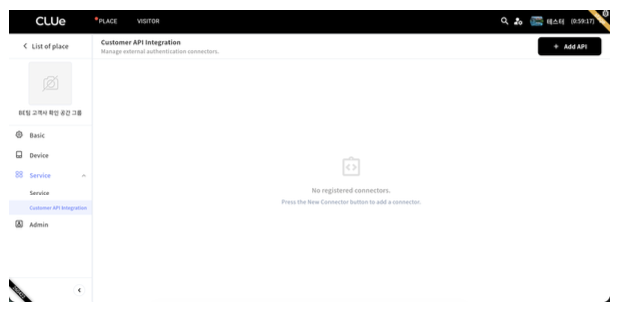
5.3 Add Custom Headers
Add custom headers here if the vendor API requires authentication/authorization headers (e.g., Authorization token, API key).
| Field | Description |
|---|---|
Key | Header name (e.g., Authorization). Duplicate names are not allowed |
Value | Header value |
- Up to 10 custom headers can be added.
- Use the add button to insert rows and the trash icon to remove them.
- Leave this section empty if the vendor API is a public endpoint or requires no additional headers.
Fixed headers — not configurable.Content-TypeandAcceptcannot be added as custom headers. CLUe internally sendsContent-Type: application/jsonandAccept: application/jsonas fixed values, so administrators do not need to specify them. Attempts to add headers with these names will not be saved. The vendor API should be designed with these two headers assumed.
5.4 Select Auto Fields
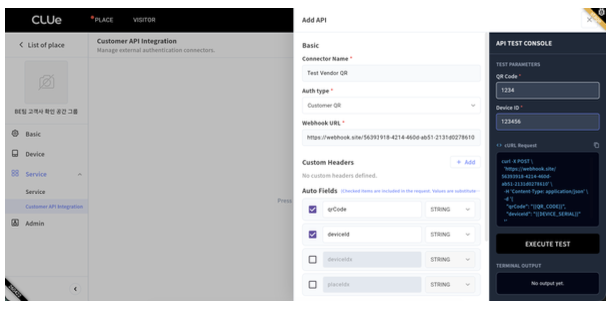
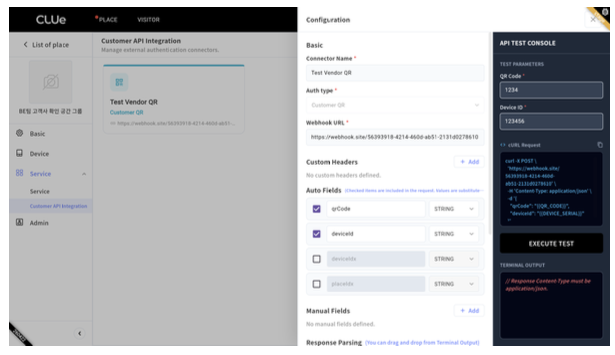
qrCode, deviceId, userKey/userKeyB, placeId/placeIds, with the API Test Console on the right.]Auto fields are values that the system automatically populates in the request body. The available auto fields vary by credential type. Each field's value position is shown as a {{...}} placeholder, which is replaced with the actual device/user value at the time of the request.
| Default Key | Placeholder (Value Position) | Availability | Actual Value |
|---|---|---|---|
deviceId | {{DEVICE_SERIAL}} | All credential types | Serial number of the requesting device |
userKey | {{USER_KEY}} | Face / Fingerprint / CLUe QR | User identifier managed by CLUe |
rfCard | {{CARD_NUMBER}} | RF Card | Card number presented |
uniquePin | {{UNIQUE_PIN}} | User PIN | PIN value entered |
qrCode | {{QR_CODE}} | Custom QR | QR payload |
Field Selection Rules
- Use the checkbox on the left of each auto field to determine whether to include it in the request.
- You do not need to select all of them. Only select the values that the vendor API actually requires for its decision. Reducing unnecessary data makes troubleshooting easier.
- The key (field name) can be modified to match the name required by the vendor API (e.g.,
userKey → employeeId). The placeholder in the value position is fixed by the system and cannot be changed. - The data format (e.g.,
STRING) is displayed to the right of each field.
No placeholders other than the 5 listed above can be added. If the vendor API requires additional values, either add them as fixed values using manual fields (Section 5.5) or coordinate with the vendor to derive them from the device serial or user key on their end.
Count limit. Auto fields and manual fields combined can include up to 10 fields in the request body. The more auto fields you select, the fewer manual fields remain available.
5.5 Add Manual Fields
Add manual fields if the vendor API requires fixed values to be included in the request.
| Field | Description |
|---|---|
Field Name | Must be unique; must also differ from auto field names |
Type | Select from STRING, NUMBER, or BOOLEAN |
Value | Enter the value for this field. It is converted to the appropriate JSON data type based on the selected type (e.g., NUMBER becomes 123, STRING becomes "123", BOOLEAN becomes true/false) |
- Auto fields and manual fields combined can include up to 10 fields.
- Use the add button to insert rows and the trash icon to remove them.
- If no manual fields have been added, the message "No manual fields defined." is displayed.
5.6 Run API Test
After completing Sections 5.2–5.5 (basic information, custom headers, auto fields, and manual fields), run a test before configuring the judgment criteria. The actual response obtained from the test is needed for the judgment criteria configuration in Section 5.7.
Use the API Test Console on the right side of the panel.
Test Parameters
The input fields displayed in the test console vary by credential type. Device ID (device serial) is required for all types; the remaining input corresponds to the value used by that credential type, entered exactly as the vendor manages it.
| Auth type | Value to Enter | Corresponding Placeholder |
|---|---|---|
| All types | Device ID — 9–12 digit number, device serial | {{DEVICE_SERIAL}} |
| Face / Fingerprint / CLUe QR | User Key — 1–64 characters, user identifier managed by CLUe | {{USER_KEY}} |
| RF Card | Card number managed by the vendor | {{CARD_NUMBER}} |
| User PIN | User PIN managed by the vendor | {{UNIQUE_PIN}} |
| Custom QR | QR payload managed by the vendor | {{QR_CODE}} |
The values entered in the test console replace the auto field placeholders and are sent as the actual request body. During testing, enter values that actually exist in the vendor's database to verify both grant and deny responses. In production, the values detected by the device are substituted automatically.
How to Run
- Click
EXECUTE TESTat the bottom of the console. - A progress indicator appears during execution. When the result is received, the request/response content (terminal output) is displayed in the console area.
- If you close the panel or navigate to a previous step during execution, the test is aborted.
After a successful response is received, proceed to the next step to configure the judgment criteria based on the response content. If no response is received due to URL, header, or field configuration issues, review those inputs and run the test again.
Required before saving. The Save Configuration button in Section 5.8 is only enabled after at least one successful test. "Successful" here means that any HTTP response was received from the vendor server (including 4xx and 5xx). If no response was received due to a network error, saving is not possible.Test Failure Example — Response Body Is Not JSON
Even if the vendor server returns a response, if the body is not in JSON format or the response header Content-Type is not application/json, a failure log with an error is displayed in the test console, and Save Configuration will not be enabled. As described in the response specification in Section 5.2, verify with the vendor contact that the API meets both of the following conditions:
- The response header includes
Content-Type: application/json - The response body is valid JSON (not an HTML error page, plain text, XML, etc.)
5.7 Configure Response Parsing
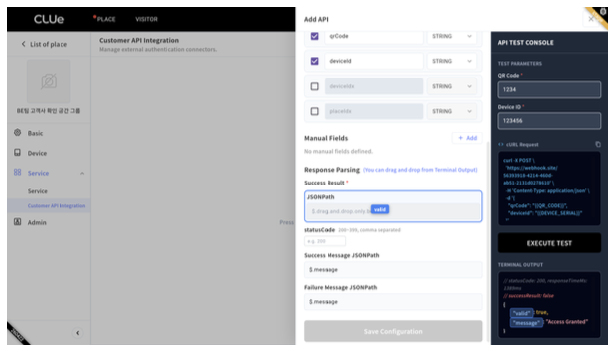
Based on the response received in Section 5.6, this step defines which responses should be interpreted as access granted (success). Responses matching the configured criteria result in access granted; all others result in access denied.
The judgment mode is automatically determined by which fields you fill in. At least one of statusCode or Success Result JSONPath must be entered; leaving both empty prevents saving.
| # | Mode | Input | Success Criteria |
|---|---|---|---|
| 1 | Response Code Verification | statusCode only | Success if the HTTP status code matches one in the list |
| 2 | Response Body Verification | Success Result JSONPath only | Success if the body's Key = Value condition is met, regardless of the HTTP response code (access is granted even for 4xx/5xx responses if the condition is satisfied) |
| 3 | Combined Verification | Both | Success when the status code matches AND the body condition is met. If the status code does not match, the body is not evaluated |
statusCode (used in Modes 1 and 3)
- Only integers in the 100–399 range can be specified. 4xx and 5xx codes cannot be designated as success.
- Up to 3 values can be selected; duplicate values are not allowed.
- If multiple values are specified, a match with any one of them is treated as success (e.g.,
200,201).
Success Result JSONPath (used in Modes 2 and 3)
- Enter the
Key,Value, and data format (BOOLEAN,STRING,NUMBER) to identify a successful response. - Only 1 success key condition can be set.
- Responses that do not match this condition are treated as access denied.
Success Message JSONPath / Failure Message JSONPath (Optional)
- Specify the key from which to extract the string to display on the device screen for successful and failed authentication respectively (commonly
messageis used). - Saving is possible without specifying these. If left empty, only the grant/deny decision is made and no message is displayed on the device screen.
- You can set different keys for success and failure scenarios.
- The value of the specified key must be a string, and should not be too long to fit the device screen.
Tip — If JSONPath entry is difficult. You can drag a field from the response area in Section 5.6 and drop it onto theSuccess Result JSONPath,Success Message JSONPath, orFailure Message JSONPathinput fields to auto-populate the JSON path. There is no need to write JSONPath manually.
5.8 Save
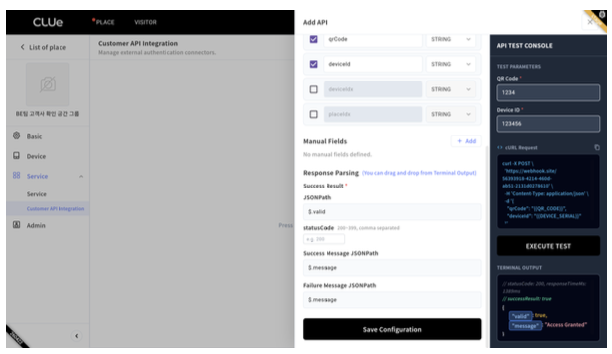
The Save Configuration button at the bottom of the panel is enabled only when all required fields and judgment criteria are correctly filled in and the API test in Section 5.6 has succeeded at least once. The same Save Configuration button is used for both new registrations and edits.
- The button remains disabled if there are missing required fields, URL format errors, manual field values that cannot be converted to the specified type, missing judgment criteria, or no successful test (including network errors).
- Click
Save Configurationto complete the registration.
After saving, the panel closes and the newly registered API appears as a card in the list. The card displays the name, credential type, registered URL, and other details.
- Click a card → The edit panel opens. You can modify the
Name,Webhook URL, auto/manual fields, and judgment criteria.Auth typeis locked and cannot be changed. - Trash icon → Deletes the registration. If this API was linked to any credential, that link is automatically removed and the change is immediately propagated to devices. The unlinked credential will then operate using device-local authentication without vendor verification. If you are concerned about an operational gap, register and link a replacement API before deleting.
6. Step 3 — Assign API to Each Credential
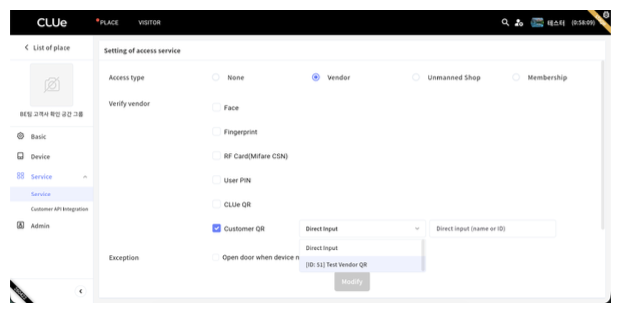
Return to the Service → Setting of access service screen. In the Verify vendor section, assign the API to use for each credential.
- Open the dropdown next to each credential to see the list of registered APIs (only APIs registered with a matching
Auth typeare shown). - For each credential — Fingerprint, Face, RF Card, User PIN, CLUe QR, Custom QR — select the desired API. You may assign different APIs to different credentials.
- Credentials without an assigned API operate using device-local authentication only. No verification request is sent to the vendor API for those credentials. Leave a credential unassigned only if you have determined that vendor verification is not needed for it.
6.1 Save and Propagation Rules
When you click Modify, a confirmation dialog appears asking whether to apply the changes to child places.
OK→ The same settings are immediately applied to all child places under this place group. Any per-place overrides are overwritten with the place group values.Cancel→ The changes are not saved.
In most cases, place group–level settings are sufficient to operate all child places with the same behavior. If a specific place needs a different API, use Step 4 (next section) to override settings for that place only.
7. Step 4 — Per-Place Override Settings (Optional)
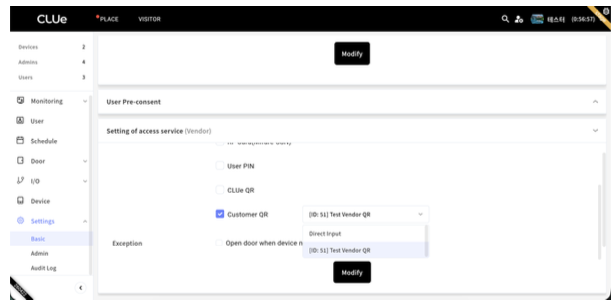
Use this step when you want to assign a different API to a specific place that differs from the settings inherited from the place group. Changes made here are applied to that place only and do not affect other places or the parent place group.
7.1 Place-Level Setting of Access Service
- Navigate to
Settings → Basic → Setting of access servicefor the place. - The
Verify vendorsection shows the APIs assigned by the parent place group as the default values. - In the dropdown for each credential, you can select a different API to use for this place only.
- Click
Modifyto save the changes to this place only. Changes are not propagated to other places. - Place administrators can only access this screen if they have been invited as an administrator to the place.
Overwrite warning. If the parent place group subsequently changes and saves credential-to-API assignments, the propagation will overwrite per-place overrides with the place group values. If you need to maintain per-place settings after a place group change, reassign them on this screen after the place group update.
8. Input Rules Summary
| Field | Rules |
|---|---|
| Name | Required, max 64 characters |
| Auth type | Required. Cannot be changed after saving |
| Webhook URL | Required, https:// required, max 512 characters. CLUe sends only HTTP POST / application/json requests to this URL |
| APIs per Auth type | Up to 3 APIs can be registered per credential type |
| Custom Headers | Key/Value pairs, max 10, duplicate names not allowed (case-insensitive) |
| Auto Fields | Only checked items are included in the request. Key (name) is editable; value is auto-populated by the system |
| Manual Fields | Combined with auto fields, max 10 total. Duplicate names not allowed. Values are converted to JSON data based on the specified type (STRING / NUMBER / BOOLEAN) |
| User Key (test) | 1–64 characters |
| Device ID (test) | 9–12 digits, numbers only |
| Judgment Mode | At least one of statusCode or Success Result JSONPath is required (entering both activates combined verification) |
| statusCode | Integers in 100–399 range, up to 3, no duplicates |
| Success Result JSONPath | 1 entry: Key + Value + data format (BOOLEAN / STRING / NUMBER) |
| Success/Failure Message JSONPath | Optional. When specified, the key to extract from the response body (value must be a string); consider device screen size. When unspecified, no message is displayed on the device |
| Save Requirement | Saving is only possible after a successful test |
9. Troubleshooting
9.1 Access Issues (Step-by-Step Diagnosis)
Use the step numbers from Section 3's Access Event Workflow to narrow down the problem area.
| Step | Symptom | What to Check |
|---|---|---|
| [1] | A specific credential is not recognized | Whether the credential is registered and enabled on the device |
| [2] | Device-to-server communication failure | Network connectivity, device registration status |
| [3] | Request does not reach the vendor server | Registered URL (HTTPS), custom headers, firewall rules |
| [4] | Vendor responds but all attempts are denied | Judgment criteria (judgment mode, success key/value, HTTP status codes) |
| [5] | Grant/deny works correctly but no message displayed | Success/Failure Message JSONPath settings, message string in the response body |
9.2 Save Configuration Button Is Disabled
If the Save Configuration button is not clickable, check the following items in order:
- Required fields — Are any of
Name,Auth type, orWebhook URLempty? - Webhook URL — Does it start with
https://? Does it exceed the max length (512 characters)? - Manual fields — Can the values be converted to the specified type (
STRING/NUMBER/BOOLEAN)? (e.g., non-numeric characters entered forNUMBER) - Judgment criteria — Is at least one of
statusCodeorSuccess Result JSONPathentered? IfSuccess Result JSONPathis used, areKey,Value, and data format all filled in? (Success/Failure Message JSONPathis optional and does not affect saving) - API test — Has at least one test succeeded? Saving is not possible without a successful test.
9.3 Test Failures
Test failures fall into three categories: (A) blocked at input validation, (B) request was sent but no response from the vendor server, and (C) response received but not the expected result.
(A) Blocked at Input Validation — The request is not sent because input values do not meet the rules.
| Symptom | What to Check |
|---|---|
| Webhook URL format error | Does Webhook URL start with https:// and not exceed 512 characters? |
| Judgment criteria key format error | Do Success Result JSONPath / Success/Failure Message JSONPath start with $. in JSONPath format (max 128 characters)? |
| Judgment criteria not specified | Is at least one of statusCode or Success Result JSONPath entered? |
| Success status code range/count error | Is each value in the 100–399 range? Are there 3 or fewer? Are there no duplicates? |
| Field key duplicate | Are auto field and manual field keys unique (no duplicates between them)? |
| Request header key duplicate | Are request header keys unique (case-insensitive)? |
| Restricted header name used | Have Content-Type or Accept been added as custom headers (case-insensitive; these are system-fixed values)? |
| Field/header count exceeded | Auto + manual fields max 10; custom headers max 10 |
| Auth type registration limit exceeded | The credential type already has 3 APIs registered |
| User Key format error | Does the User Key in the test console fall within the allowed characters (letters, numbers, -, _, @, .) and 1–64 character length? |
| Device ID format error | Is the Device ID in the test console a 9–12 digit number? |
(B) Request Sent but Test Shows Failure — The test result shows success = false, and saving is not possible in this state.
| Symptom | What to Check |
|---|---|
| Connection failure / network error (no response received from vendor server) | Vendor server public accessibility, HTTPS certificate validity, firewall/port configuration, custom headers (expired tokens, typos) |
| Timeout (no response) | Vendor server response latency, network conditions. The test treats no response within several seconds as a failure |
| Response received but body is not JSON | Does the vendor return a JSON response? Is the response Content-Type set to application/json? HTML error pages, empty text, etc. fall into this category |
(C) Response Received but Not the Expected Result — success = true is shown along with the actual HTTP status code in statusCode and the vendor's raw response in responseBody. Saving is possible; this is the stage to adjust judgment criteria based on the response.
| Symptom | What to Check |
|---|---|
| Status code received but all access is denied | For Modes 1 and 3: check the list of status codes accepted as success. For Mode 2: check body key/value conditions (status code is ignored) |
| Body field condition does not match | Re-verify the Key, Value, and data format (BOOLEAN / STRING / NUMBER) entered in Success Result JSONPath. Check whether the response returns "true" (string) vs. true (boolean) — type must match |
| Manual field appears in wrong format in request body | Re-verify the manual field type (STRING / NUMBER / BOOLEAN) against the actual input value |
The test API displays the response body as-is without parsing, so use the actual response JSON shown in the console to match your JSONPath, key, and value settings.
When narrowing down failure causes on the device side, also refer to Section 9.1 Step-by-Step Diagnosis.
9.4 Cannot Save with Duplicate Names
Auto field and manual field key names cannot be duplicated with each other. Request header keys also cannot be duplicated with each other. If you renamed an auto field key, verify it does not conflict with any manual field.
9.5 No Message Displayed on Device Screen
- Verify that the response body actually contains the field specified by Success Message JSONPath or Failure Message JSONPath
- Verify that the key's value is a string (numbers, objects, and arrays are not displayed)
- Verify that the
Success Message JSONPath/Failure Message JSONPathnames in the settings exactly match the keys in the actual response