
Overview
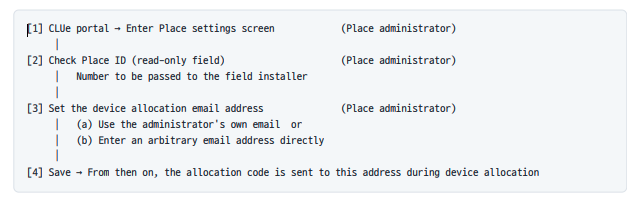
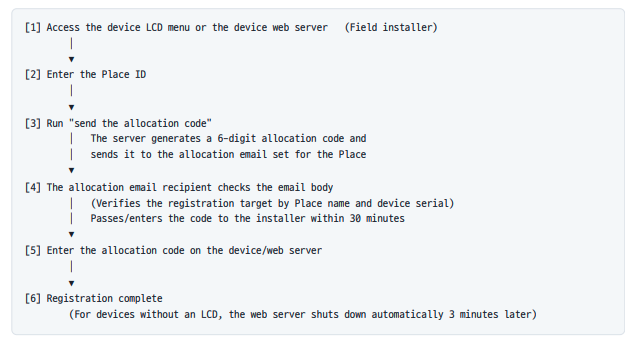
Device Self-Registration can be understood along two axes: the administrator preparation flow (the administrator
prepares first) and the field registration flow (the installer performs it in the field).
Supported Devices and Firmware Versions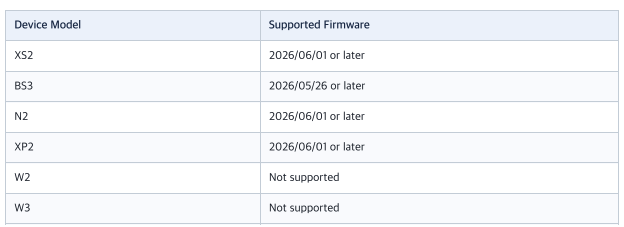
Step 1 — Administrator Preparation (Portal Place Settings)
Before field registration begins, the Place administrator checks the Place ID and sets the device allocation email address on the CLUe portal. If this is not set, the allocation code cannot be received in the field
After logging in to the CLUe portal, navigate to the target Place's settings screen.
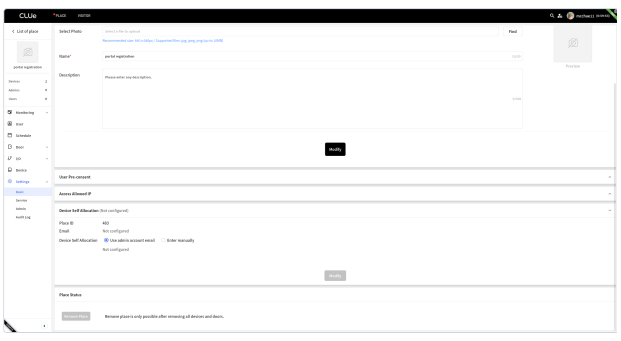
The Place settings screen has a Place ID (read-only) field and an input area for the device allocation email address. This screen is accessible only to administrators invited to that Place with Place Admin or higher permission. Without permission, access is denied.
Checking the Place ID
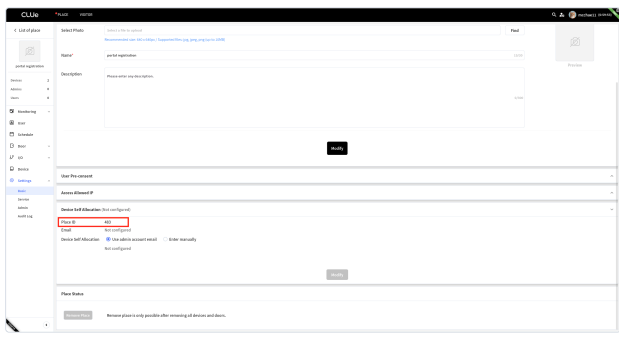
The Place ID shown on the screen is read-only. Provide this number to the field installer. The field installer enters this Place ID exactly as is on the device to register it. A Place ID typo is the most common cause of registration failure, so be sure to convey it accurately.
Setting the Device Allocation Email Address
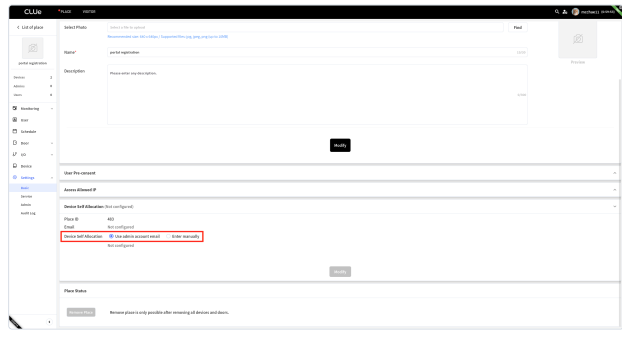
The device allocation email address is set in one of two ways.
Method Description
(a) Use the administrator's own email The email address of the currently logged-in administrator account is entered automatically
(b) Enter directly Enter an arbitrary email address directly (RFC 5322 format, up to 254 characters)
In either method, the entered email address is stored on the server as is. The system does not distinguish whether the recipient is the administrator, the field installer, or a third party. Only one allocation email can be set per Place. When a new Place is created, the allocation email starts in a not-set state. To use self-registration, you must set it first.
What if you don't set the email? If a field installer performs "send the allocation code" in a Place where the
allocation email is not set, the error "The administrator must first set an allocation email address." is
displayed
Step 2 — Field Self-Registration
The registration procedures for LCD devices (Chapter 6) and devices without an LCD (Chapter 7) operate on the same principle; only the screens differ. First, here are the concepts that apply commonly to both paths.
The Two-Step Registration Procedure Step Action Result
① Send the allocation code After entering the Place ID, run "send the allocation code" The server generates a 6-digit allocation code and sends it to the Place's allocation email Step Action Result
② Enter the allocation code Enter the code received by email within the set time If the code matches, the device is registered to that Place
LCD Device Self-Registration
The screens below are examples; the actual screen layout and button names may differ depending on the device model and firmware version. Proceed based on the guidance text displayed on the screen.
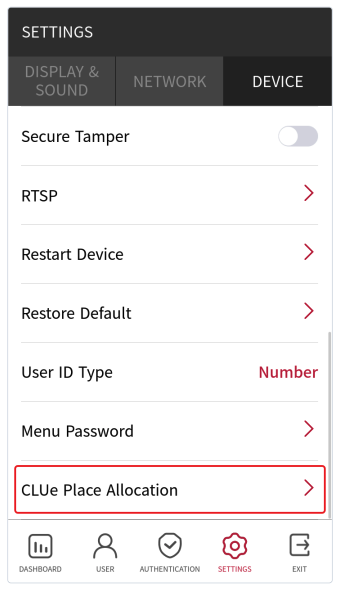
In the device settings menu, selecting DEVICE tab > CLUe Place Allocation (the red box in the screen above) enters the Place registration screen. (The menu name and location may differ depending on the device model and firmware version.)
If the device already belongs to some Place (or place group, branch, or headquarters), you cannot enter the registration screen and the "already registered" message is displayed.
Entering the Place ID
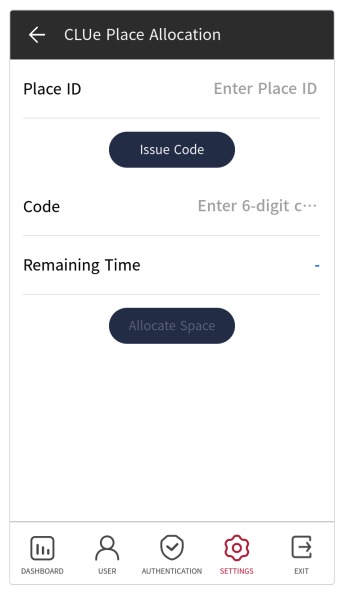 Enter the Place ID received from the administrator using the numeric keypad.
If you enter an ID that does not exist or is not a lowest-level Place, the error "The entered Place ID does not
exist. Please check the correct Place ID and enter it again." is displayed. Recheck the Place ID and enter it.
Enter the Place ID received from the administrator using the numeric keypad.
If you enter an ID that does not exist or is not a lowest-level Place, the error "The entered Place ID does not
exist. Please check the correct Place ID and enter it again." is displayed. Recheck the Place ID and enter it.
Sending the Allocation Code
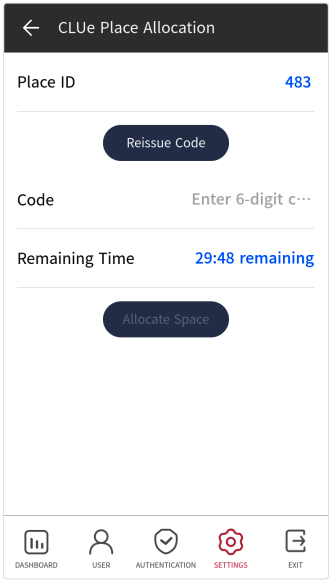
After entering the Place ID, run "send the allocation code." The server generates a 6-digit allocation code, sends it to that Place's allocation email, and the device switches to the allocation code entry screen. If the allocation email is not set, the error "The administrator must first set an allocation email address." is displayed. In this case, ask the administrator to set the allocation email.
Entering the Allocation Code
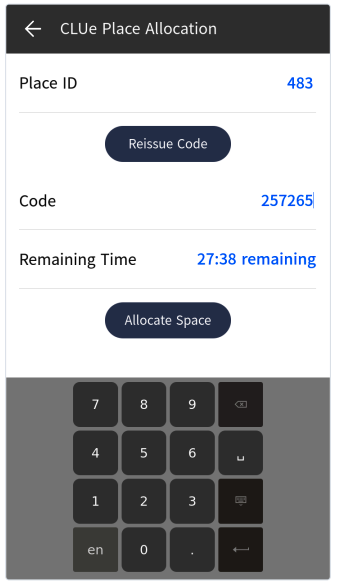
Enter the 6-digit code received via the allocation email within 30 minutes. If the code has expired or does not match, an error is displayed, and you can re-enter the code or request a new code. If you enter the code incorrectly a cumulative 5 times, the issued code is discarded. Return to 6.3 and request a new code.
Registration Complete
When you run ④ Allocate Space and the code matches, the device is registered to that Place and the screen displays a registration complete (success) message. The device then switches to the normal access operation screen. A registered device cannot have its Place changed in the field. If a change is needed, perform it from the CLUe portal.
Self-Registration for Devices Without an LCD (Web Server)
This device has no display screen (LCD) of its own. Therefore, you cannot see the registration screen on the device body itself; you must access the device with a web browser on a PC or smartphone connected to the same network for the registration screen (web panel) to appear. Since there is no screen, the procedure below is guided by text descriptions and the ①–④ markers on the screen.
Accessing the Device Web Server
In the address bar of the web browser on a device connected to the same network as the target device, enter the following address to connect
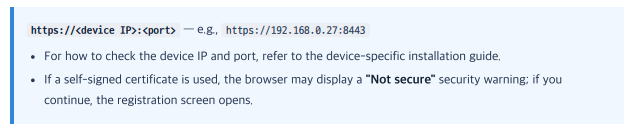
If the device is not yet registered to any Place, the Place registration screen (CLUe Device Web Panel) shown
below is displayed.
If the device already belongs to some Place, the "already registered" message is displayed and you cannot
access the registration screen.
Proceeding with Registration on the Web Screen
Registration proceeds on a single web screen in the order ①–④ below. (The red numbers on the screen correspond to the numbers in the table.)
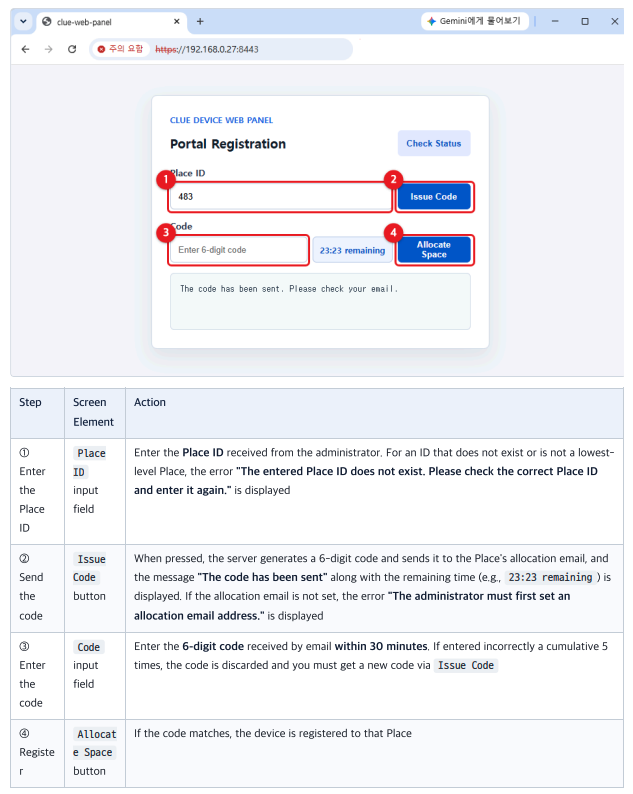
You can check the current registration status with the Check Status button. To get the code again, press Issue Code (resend). However, the same device can only resend after 60 seconds have passed since the previous send.
Registration Complete and Automatic Web Server Shutdown
After ④ Allocate Space , if the code matches, the device is registered to the Place and a completion message is displayed. Once registration (network configuration) is complete, the web server runs for only about 3 more minutes and then shuts down automatically. After that, attempting to connect to the same address will not connect. This is normal behavior intended to prevent unnecessary resource consumption and to strengthen security. To change the Place after registration, perform it from the CLUe portal.
Checking the Allocation Code Email
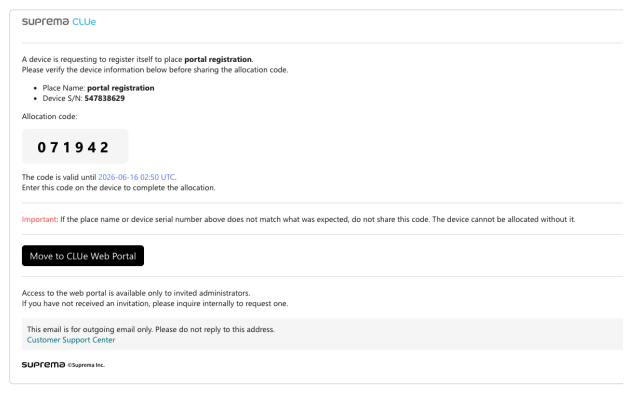
When you run "send the allocation code," an allocation code email is sent to the allocation email address set for the Place. Before entering the allocation code, the recipient must verify that the registration target is correct using the email body.
The email subject includes the device serial (deviceSn). Therefore, you can identify which device the code is for just by looking at the subject in your inbox list (e.g., the serial 547838629 shown in the subject). When installing several devices at the same time, distinguish the email for the relevant device by the serial in the subject.
Already-Registered Devices (Re-registration Restriction)
A device that already belongs to some Place (or place group, branch, or headquarters) cannot be registered again in the field. When you enter the registration menu ( CLUe Place Allocation ) on an LCD device, or access the web server of a device without an LCD, the following message is displayed and access to the registration screen is blocked.
This device is already registered. Changes can be made from the CLUe portal. Changing or releasing a Place is only possible from the CLUe portal. It cannot be performed in the field. In rare cases, even though the device itself appears not to belong to any Place, it may already be registered on the server (e.g., pre-registered in the portal). In this case, running "send the allocation code" similarly displays the "already registered" error. Even then, perform the change from the portal.
For more details, please check the attachment.