
Dear Valued Partners,
BioStar X version 1.0.3 is now available at the Suprema Download Center.
This release focuses on Trust & Compliance: an enhanced audit trail, secure communication by default, TLS 1.3, and DESFire EV2/EV3 Secure Messaging.
It also improves monitoring and device operations, and adds Rapid Face Authentication and XPQ2-DPB support.
Licensing is also more flexible. You can now purchase the seven Advanced Access Control features individually.
1. Security and Audit Improvements
BioStar X v1.0.3 strengthens system security and records administrative activity for traceability.
Audit Trail
Separate audit logs are available for Access Control and Time & Attendance administration.
- AC Audit Log: Records Access Control administration of users, devices, doors, and related system objects.
- T&A Audit Log: Records Time & Attendance administration of attendance data, schedules, shifts, and reports.
Each audit record includes the following fields:
- Date and time
- User
- Account Level
- Category and Target
- Action and Sub Action
- Modified Fields
- Details
- IP address
Administrators can also configure audit log retention and whether supported view activities are recorded.
Recorded actions include Create, Update, Delete, View, Export, and Import.
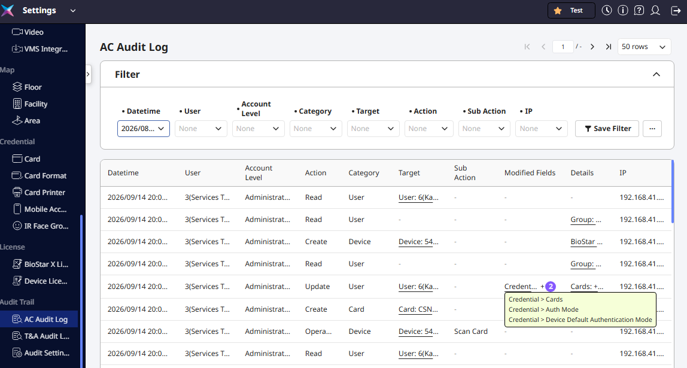
For more details, see [View Access Control Audit Logs] in Suprema Docs.
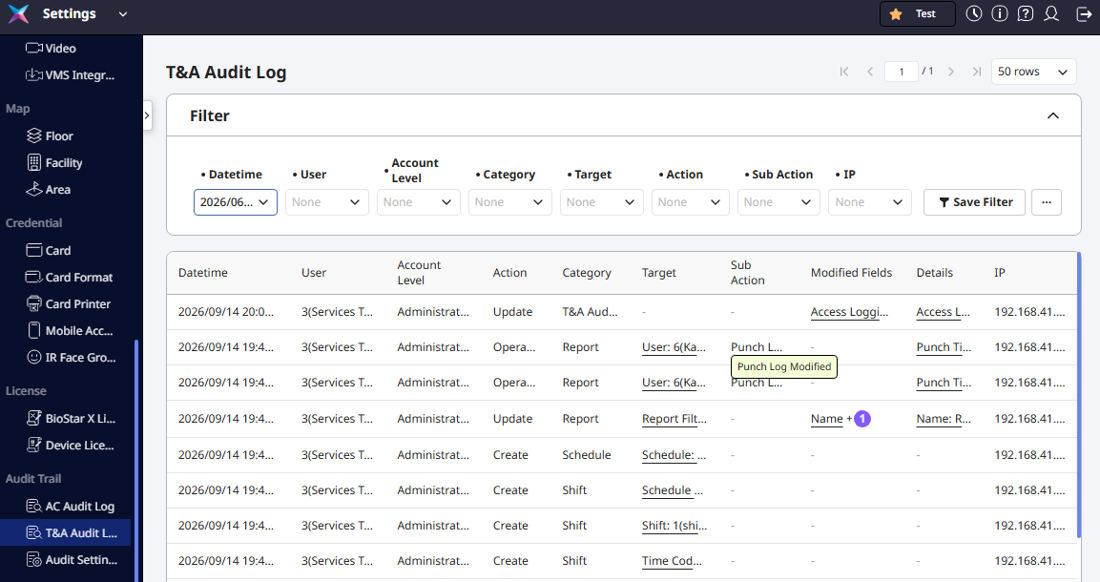
For more details, see [View Time and Attendance Audit Logs] in Suprema Docs.
Saved Reports
Report saving is supported for:
- All Events
- Alert History
A saved report keeps the configured period and column filters, such as Door, Elevator, Device, User Group, and User. Operators can return to the same view without configuring it again.
[BioStar X > Data > Generate Report > All Events > Save Report]
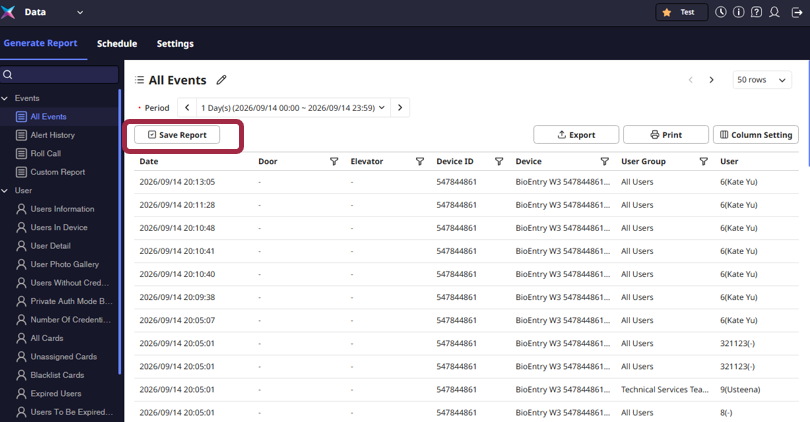
For more details, see [Generate Report and Find Save Report] in Suprema Docs.
Audit Settings [BioStar X > Settings > Audit Trail > Audit Settings]
- Set the retention period for change records (Create, Update, Delete) and for view records.
- Choose whether BioStar X records supported view activities.
For more details, see [Manage Audit Trail Retention Settings] in Suprema Docs.
TLS 1.3
BioStar X v1.0.3 upgrades most communication channels to TLS 1.3.
The following channels remain on TLS 1.2.
Channel | TLS version |
|---|---|
Device ↔ BioStar X server (Secure Communication) | TLS 1.2 |
BioStar X ↔ MS-SQL | TLS 1.2 |
Secure Communication with Device
- New installation: Secure Communication with Device is enabled by default.
- Upgrade: BioStar X keeps the previous setting and existing valid certificates. Previously enrolled devices reconnect without certificate re-registration.
- If the setting was disabled before the upgrade, it stays disabled.
- Upgrade from BioStar 2: If Secure Communication was disabled in BioStar 2, it stays disabled in BioStar X.
Important:  When Secure Communication with Device is enabled, back up the server certificate set before uninstalling BioStar X. The set includes:
1. Root CA
2. Server certificate
3. Server private key
This backup allows a reinstalled server to reconnect existing devices. Database restoration and certificate reuse are separate procedures.
For more details, see [Uninstall BioStar X Server and Restore Security Certificates] in Suprema Docs.
EV2 Secure Messaging
BioStar X v1.0.3 supports EV2 Secure Messaging for supported DESFire EV2 and EV3 cards.
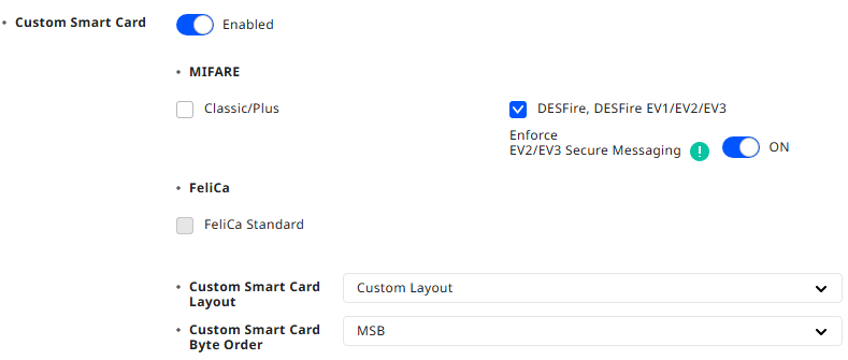
Checklist
- The device firmware must support EV2 Secure Messaging.
The card must be DESFire EV2 or DESFire EV3.
- DESFire is enabled, and the encryption type is set to AES.
- Supported card layouts: Suprema Smart Card and Custom Smart Card.
[Important] DESFire EV1 cards do not support EV2 Secure Messaging. When this option is enabled, devices reject EV1 cards. Check the cards in use before enabling this option.
For more details, see [Suprema Smart Card] and [Custom Smart Card] in Suprema Docs.
Auth Failure Lockout
BioStar X v1.0.3 temporarily locks PIN authentication on a device after repeated PIN failures. This blocks PIN guessing.
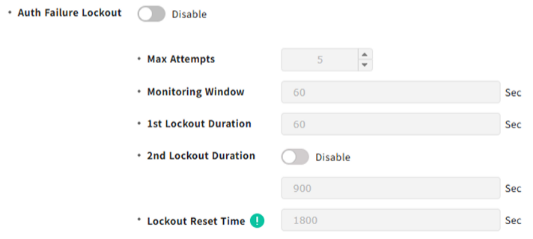 | 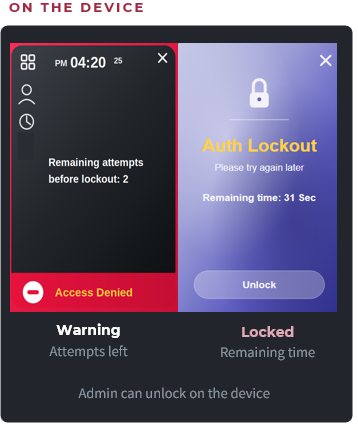 |
- The device shows the remaining attempts before lockout.
- You can set the 1st and 2nd lockout duration and the reset time.
- The lock is released automatically when the lockout duration ends.
- An administrator can release the lock manually. [BioStar X > Monitoring > Locked Device > Release Lockout]
For more details, see [Authentication method settings] and [Batch control panel layout] in Suprema Docs.
Supported Firmware
- BioStation 3: v1.5.0 or later
[Note] Auth Fail Lockout applies to PIN authentication only.
2. License Management Improvements
BioStar X v1.0.3 simplifies license activation and lets you purchase only the Advanced Access Control features you need.
Multiple License Activation
Multiple licenses can now be activated together.
- Online Activation: Paste license keys as a line-separated list. BioStar X automatically places each key into a separate field. Up to 30 online license keys can be processed at once.
- Offline Activation: Select one compressed file that contains multiple offline license files. BioStar X applies them together.
For more details, see [Register online license] and [Register offline license] in Suprema Docs.
Essential License
The Essential license includes Map and supports optional Add-on licenses.
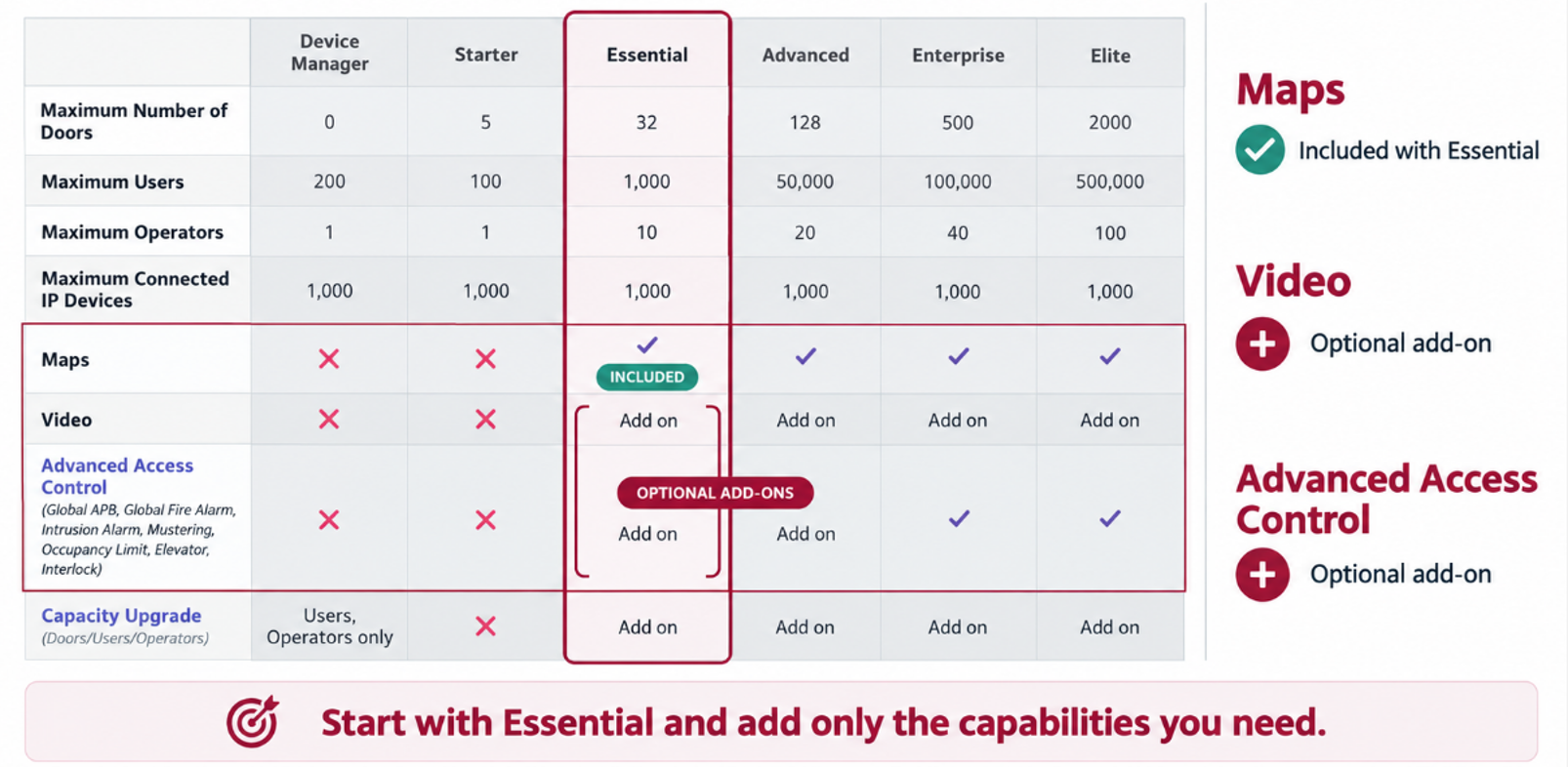
Advanced Access Control Add-ons
For new purchases from v1.0.3, Advanced Access Control is divided into the following individual Add-ons:
| Add On - License Name | License Part Number |
| Anti-passback | BIOSTARX-ADD-APB |
| Fire Alarm | BIOSTARX-ADD-FAL |
| Intrusion Alarm | BIOSTARX-ADD-IAL |
| Interlock | BIOSTARX-ADD-ILK |
| Occupancy Limit | BIOSTARX-ADD-OCC |
| Muster | BIOSTARX-ADD-MST |
| Elevator | BIOSTARX-ADD-ELV |
License tier | From v1.0.3 |
|---|---|
Essential | Individual Add-ons |
Advanced | Individual Add-ons |
Enterprise / Elite | All seven features included |
[Note]
• Existing customers who purchased the previous Advanced Access Control package can continue using it.
• Scheduled Lock and Scheduled Unlock remain basic access control features. They do not require an additional Advanced Access Control license.
For more details, see [BioStar X License Policy] in Suprema Docs.
Use the BioStar X License Calculator to resolve complex licensing requirements. The tool helps determine the required license type and quantity.
3. Enhanced Face Authentication
BioStar X v1.0.3 introduces additional face authentication options for more flexible and secure authentication.
Rapid Face Authentication
After one user authenticates, the device is ready to detect the next face in about one second. This reduces waiting time at busy entrances. Rapid Face Authentication is built into supported firmware and requires no separate setting.
New Options
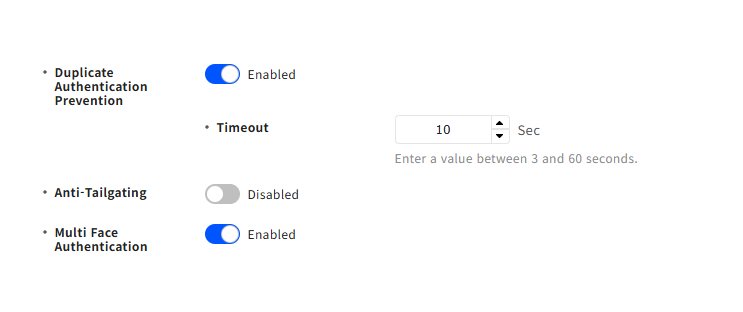
Duplicate Authentication Prevention
- Prevents repeated authentication by the same user within a configured period of 3–60 seconds.
Anti-Tailgating
- Prevents authentication when two or more faces are detected at the same time.
Multi Face Authentication (Device License is required)
- Sequentially authenticates multiple users detected within the camera view.
Supported Firmware
- BioStation 3: v1.5.0 or later
- Supports up to 3 users simultaneously.
- BioStation 3 Max: v1.2.0 or later
- Supports up to 5 users simultaneously. Firmware v1.2.0 is scheduled for release in December 2026.
- BioStation 3: v1.5.0 or later
Note
• Anti-Tailgating and Multi Face Authentication cannot be enabled at the same time.
• Multi Face Authentication requires a device license.
• Duplicate Authentication Prevention and Multi Face Authentication are supported on master devices.
• Anti-Tailgating is supported on both master and slave devices.
For details on face detection settings, see [Face Detection Settings] in Suprema Docs.
4. Door Control through Authentication
BioStar X v1.0.3 allows authorized users to change a door to Always Open by presenting the same card twice (Double Badge).
- The first card presentation performs normal authentication.
- Presenting the same card again changes the door to Always Open.
- The door returns to its original mode when the user performs Double Badge again or when the configured schedule ends.
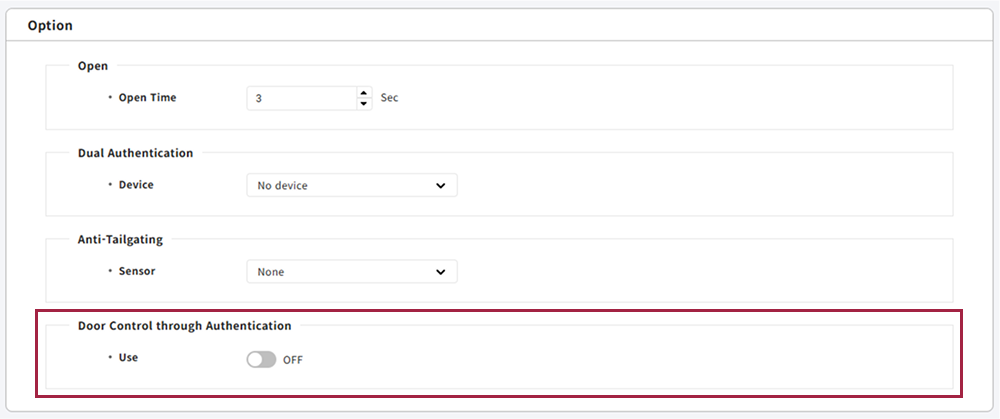
[BioStar X > Settings > Access Point > Door > Select Door > Option > Door Control through Authentication]
Requirements
- The door must belong to an Access Group.
- Only users who have access to the door can be selected.
- Up to 12 individual users can be configured.
- User groups are not supported.
- Credential: Card
- Authentication Mode: Card
Supported Devices
- XPass 2: FW v1.5.3 or later
- FaceStation F2: FW v2.3.0 or later
[Important] Present the second card within 3 seconds. After 3 seconds, the device treats the second presentation as a new authentication.
For more details, see [Configure Door Control through Authentication] in Suprema Docs.
5. Batch Control
BioStar X v1.0.3 improves operation efficiency by allowing administrators to select and control multiple access control entities at once.
Administrators can select multiple items using the following methods:
- Ctrl + Click: Add or remove individual items.
- Shift + Click: Select a range.
- Click Group: Select all items in the group.
For more details, see [Select multiple devices] and [Batch control panel layout] in Suprema Docs.
Supported Controls
Entity | Controls |
|---|---|
Doors | Unlock / Lock, Normalize, Clear Alarm, Clear APB, Arm / Disarm |
Elevators / Floors | Unlock / Lock, Normalize, Clear Alarm |
Advanced Access Control | Enable / Disable, Arm / Disarm, Clear Alarm, Clear APB |
Devices | Reconnect, Reboot, Unlock Device, Release Lockout, Stop Action |
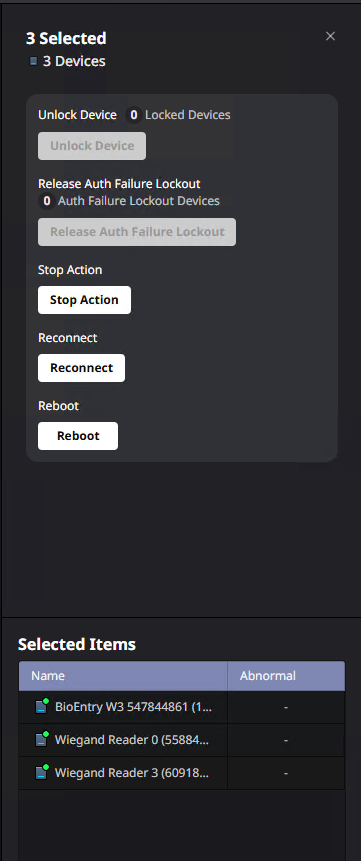
6. Device Configuration Export and Import
BioStar X v1.0.3 allows administrators to export a device configuration and apply the same configuration to other devices of the same model. This reduces repetitive configuration work when deploying multiple devices.
- Export from one device: [BioStar X > Settings > Device > Select one device > More (…) > Export Device Configuration]
- Import to one or more devices: [BioStar X > Settings > Device > Select devices > More (…) > Import Device Configuration]
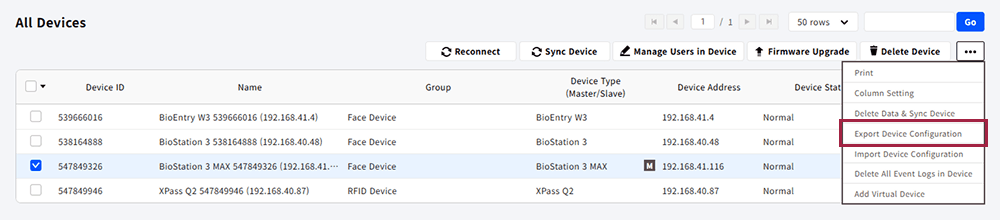
Note
The device configuration is exported as a JSON file.
BioStar X validates the Device Model and RS-485 Mode before importing the configuration.
Device-specific settings and sensitive settings are not included in the export.
For more details, see [Export/import device configuration] in Suprema Docs.
7. Improved Custom Level Permissions
BioStar X v1.0.3 provides more granular account permission management.
Instead of assigning permissions only at a broad menu level, administrators can configure permissions at the submenu level, allowing each operator account to access only the functions required for its role.
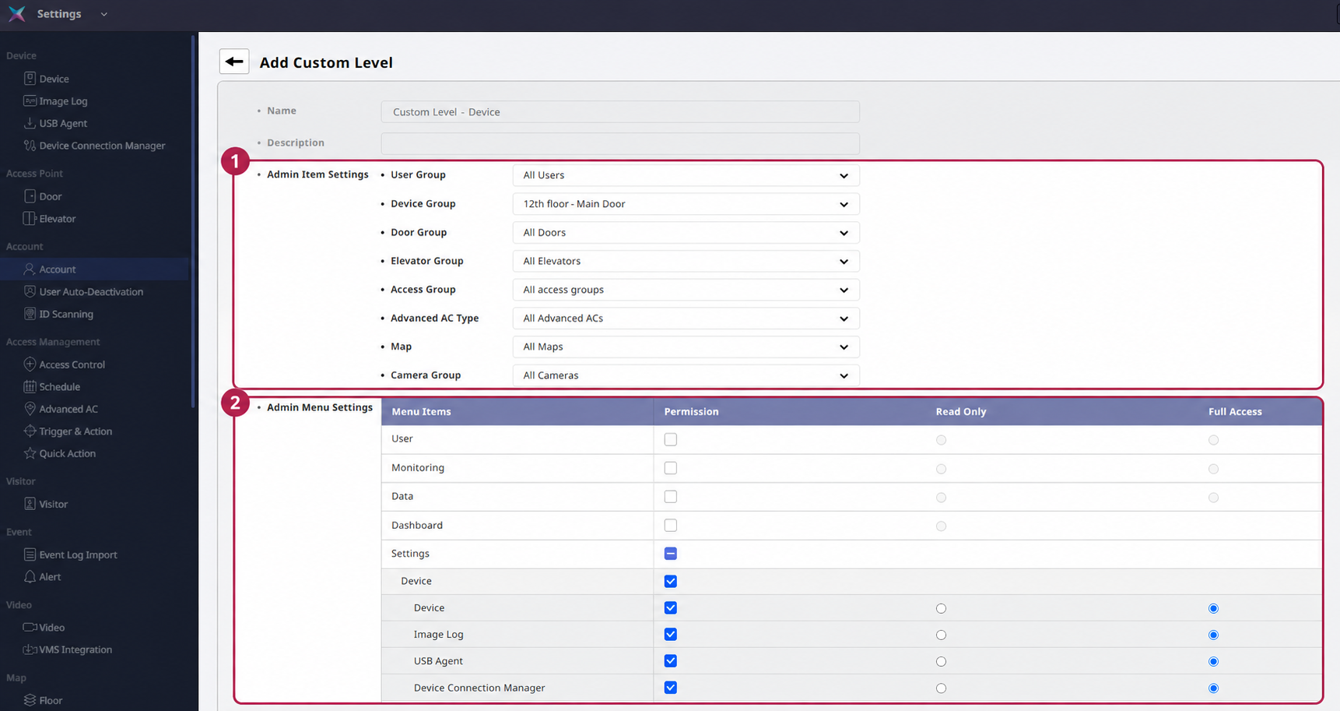
[Settings > Account > Custom Level]
- Supported menu permissions distinguish between Read Only and Full Access.
- Camera Group permission includes Camera Scope.
[Note]
Administrative scope and menu permissions are separate settings. Administrative scope defines which users, doors, and access groups an account can manage. Menu permissions define which functions the account can perform.
For more details, see [Add custom permissions] in Suprema Docs.
Other Improvements in BioStar X v1.0.3
In addition to the major features above, BioStar X v1.0.3 includes several usability, monitoring, user management, and device support improvements.
BioStar X v1.0.3 also includes the following usability, monitoring, user management, and device support improvements.
User Management
- Roll Call – Include On-Site Users Only: Roll Call can include only users identified as being on-site based on configured Site Entry and Exit devices. The participant list does not change after the Roll Call starts.
- User Auto-Deactivation: Users can be automatically deactivated after a configured period of inactivity (1–365 days).
- Expanded Special Character Support: Period (.) is supported in User ID, while period and apostrophe (') are supported in User Name.
- T&A Integration: T&A can be accessed directly within the BioStar X interface without opening a separate browser tab.
Monitoring and Operations
- Monitoring Improvements: Improved status trees, real-time Preview controls, attention filtering, dynamic layouts, device lock status, and improved Map navigation provide more efficient monitoring.
- Enhanced Event Filter: Operators can select all events, an entire event group, or individual events. [BioStar X > Monitoring > Real-time Event > Event Filter]
- Improved Quick Action: Up to four frequently used Quick Actions can be pinned to the header.
- Device Management Improvements: Device Tree status is retained between sessions, and hardware version information is displayed as reported by the device.
- Improved Settings Menu: Settings are reorganized into category-based menus for easier navigation.
New Hardware and Integration Support
Item | Description | Requirement | Example |
|---|---|---|---|
BioStation 3 Max | Video playback on the idle screen (MP4 H.264, up to 200 MB, up to 3 videos) | v1.1.0 or later | 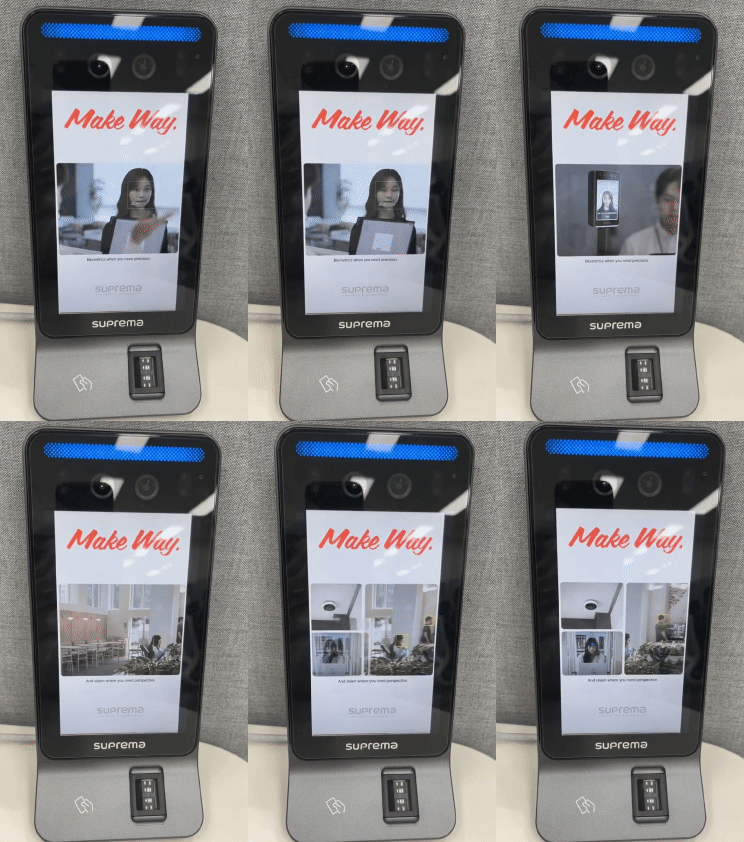 |
XS2-Q models (XS2-QDPB, XS2-QAPB) | Camera QR support | v1.4.1 or later | |
XPass Q2 PoE (XPQ2-DPB) | New model support | — | |
XPass 2 Revision 2 | New hardware revisions: XP2-GDPB-V2, XP2-GKDPB-V2, XP2-MAPB-V2, XP2-MDPB-V2, XP2-MAPB-H-V2 | Verify firmware per revision | |
Passport Scanner | Only DESKO ID Scanner support | Latest USB Agent | |
Nx Witness | Guided certificate setup for VMS integration | [BioStar X > Settings > Video > VMS Integration] For more details, see [Install the certificate on the VMS server] in Suprema Docs. |
FAQ
Q. Which BioStar 2 versions can I upgrade to BioStar X v1.0.3?
A. You can upgrade to BioStar X v1.0.3 from BioStar 2 v2.9.11 or v2.9.12.