
Updated: 2026-Sep-21
Affected Products & Versions
BioEntry P2, BioEntry W2, XPass 2, BioEntry W3, XPass Q2
CoreStation, CoreStation 20
Devices without an LCD Screen
Applies to: BioEntry P2, BioEntry W2, XPass 2, BioEntry W3, XPass Q2
For CoreStation and CoreStation 20, refer to the CoreStation & CoreStation 20 section below.
Reset procedures and requirements vary by model. For the reset button location and the instructions that apply to your device, refer to its installation guide on Suprema Docs.
Network Reset
With the device powered on, press and hold the reset button on the back until the device restarts automatically.
The image below shows the reset button on the BioEntry W2.

Factory Reset
A factory reset requires a root certificate stored on the device. It deletes all data stored on the device, removes the root certificate, and restores the device settings to their defaults.
With the device powered on:
- Press the reset button three times in quick succession.
- Wait for the LED to blink green, then press the reset button once more.
For information about secure communication and device certificates, see How to configure Secure Communication between Device and Server (TLS/SSL).
CoreStation & CoreStation 20
Network Reset
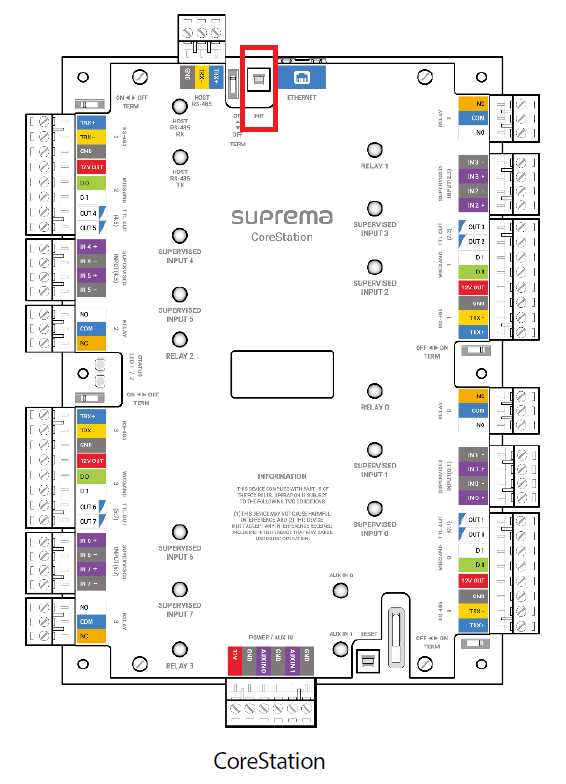
Press and hold the INIT button for at least 3 seconds to reset the Ethernet and RS-485 settings.
Note: If the device cannot obtain an IP address from a DHCP server, it uses an address in the 169.254.x.x range.
The image below shows the INIT button on the CoreStation.
Factory Reset
A factory reset requires a root certificate stored on the device. It deletes all data stored on the device, removes the root certificate, and restores the device settings to their defaults.
You can perform a factory reset on CoreStation and CoreStation 20 using the INIT button or CoreStation Setup Manager.
Using the INIT Button
- Press the INIT button three times.
- Press the INIT button once more.
Using the CoreStation Setup Manager
The CoreStation Setup Manager is supported on CoreStation firmware v1.3.1 or later and CoreStation 20 firmware v1.0.0 or later.
- Open CoreStation Setup Manager and go to CONFIGURE.
- Click Factory Default.
Note: A factory reset also deletes the CoreStation Setup Manager administrator account.
For details, refer to the CoreStation Setup Manager Documentation.