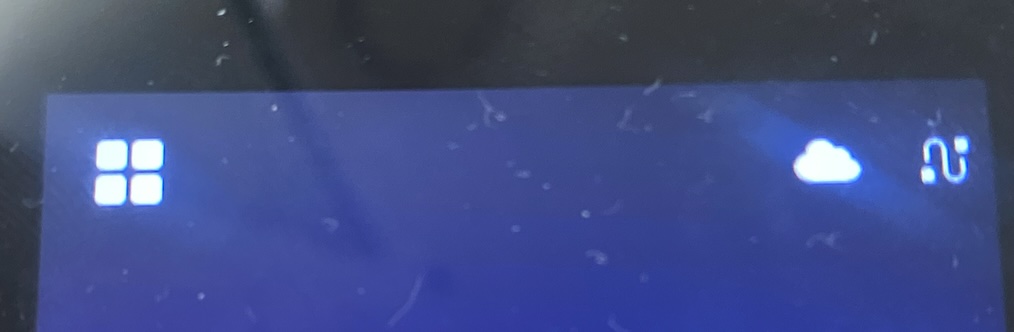
When the CLUe server connection is established successfully, the cloud icon below is displayed on the device. On devices without an LCD display, the Suprema device’s blue and light-blue LEDs will blink.
1. Not able to see the online status from the CLUe portal
The issue arises when the device does not connect to the CLUe server.
In this case, the following checks are required in order.
Verify whether the CLUe firmware (FW) and certificate are applied to the device
For general Suprema devices, the CLUe FW and certificate are not installed by default. Connection to the CLUe server is only possible if you have purchased a CLUe-dedicated product, or if a standard Suprema device has been converted by applying the CLUe FW and certificate.
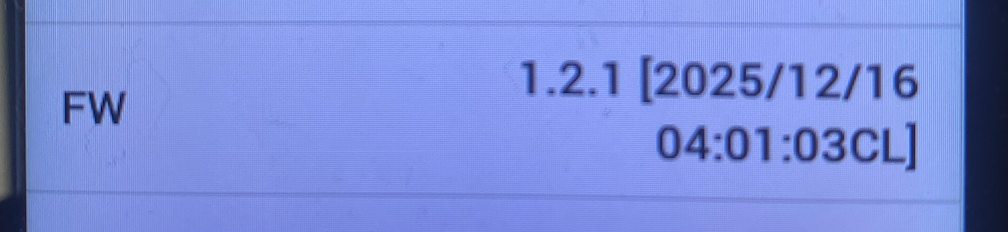
The first way to identify whether CLUe FW is applied is to check whether the cloud icon is displayed on the device screen, and to verify the firmware version name on the device menu page.
If the firmware name does not end with “CL” as shown below, it indicates that the device is running a standard firmware version, not the CLUe firmware.

Please check the link below for AutoUpgrade apply method.
https://support.supremainc.com/en/support/solutions/articles/24000098410-how-to-change-to-clue-fw
2. Not able to Connect
The issue occurs when the CLUe firmware and certificate are presumed to be applied, but the device still fails to connect to the CLUe server.
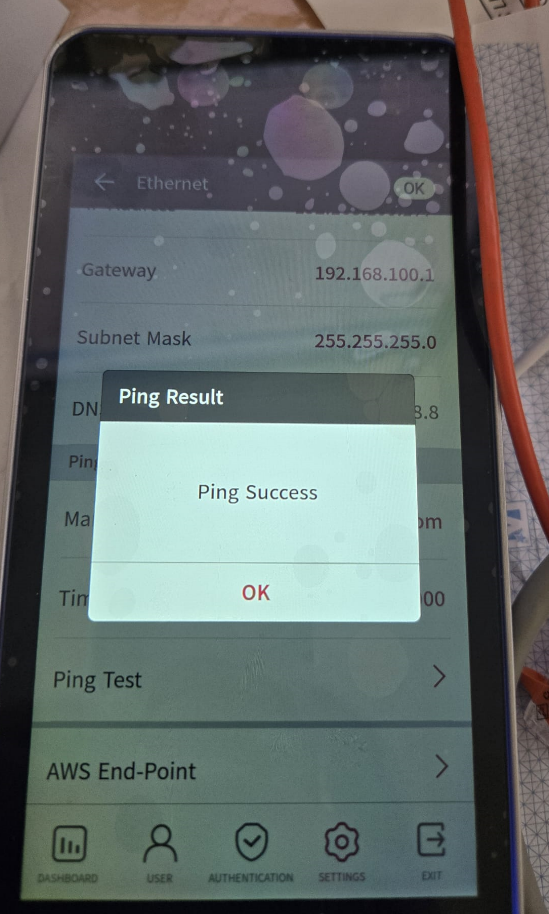
In this case, a PING test should first be performed through the device’s network menu. If the PING test cannot be executed, install the program below on a laptop and connect the Ethernet cable that is used by the device directly to the laptop. Then, verify whether the IP addresses and ports required for connecting to the CLUe server are open on that network.
CLUe-IP-Network-Tester-Installer 1.exe
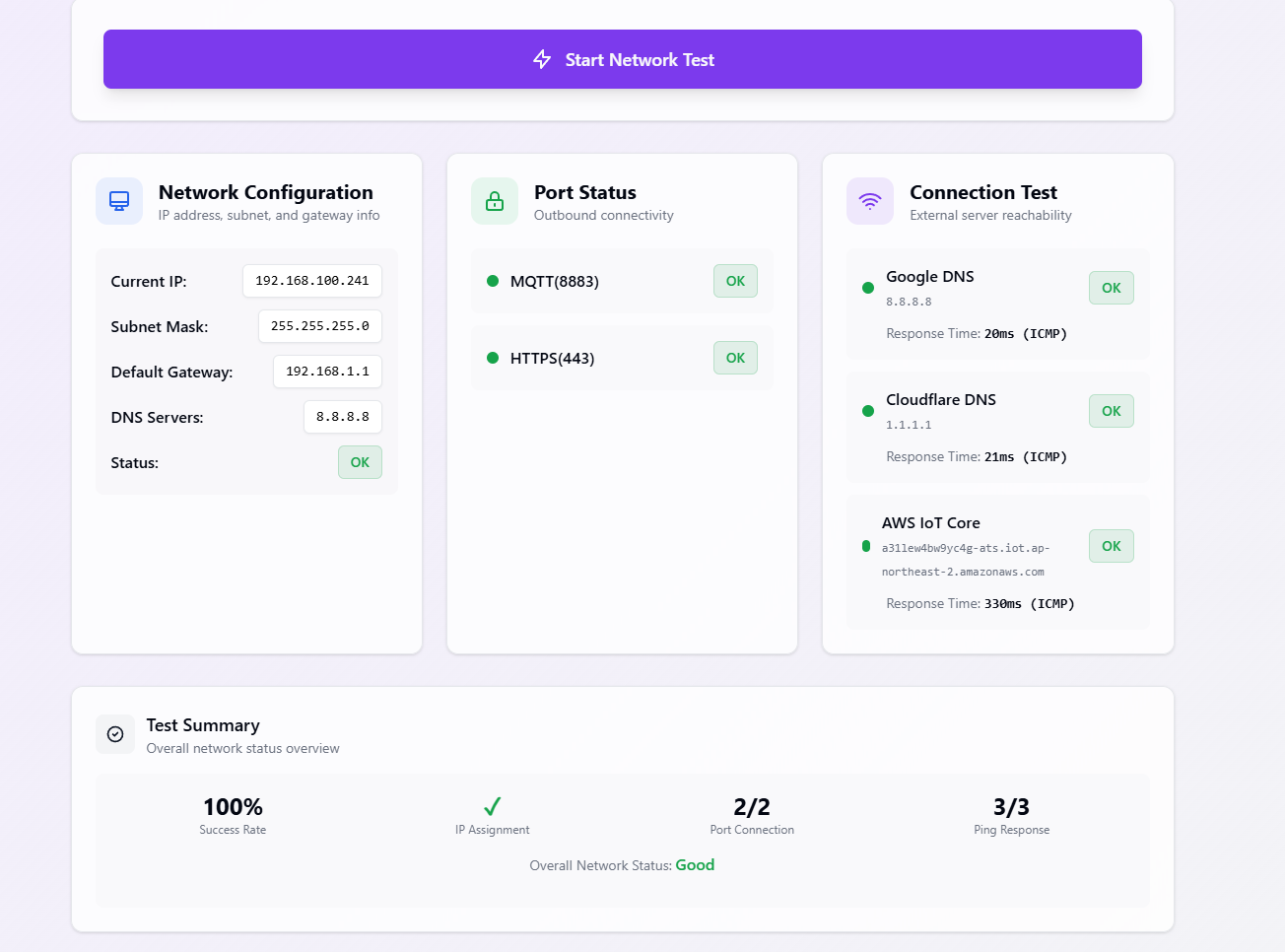
If the PING test fails or the network does not allow the connection, those network settings must be opened and configured first to ensure that the device can connect to the CLUe server.
CLUe devices use the following outbound IPs and ports.
HTTPS: https://api.moon.supremainc.com (TCP, 443, HTTPS)
MQTT: a31lew4bw9yc4g-ats.iot.ap-northeast-2.amazonaws.com (TCP, 8883, MQTT)
DNS: 8.8.8.8 (TCP/UDP, 53)
PING: 8.8.8.8 / 1.1.1.1 (ICMP)
NTP: kr.pool.ntp.org / asia.pool.ntp.org / us.pool.ntp.org (UDP, 123)
HTTPS: Data exchange between the CLUe server and the device
MQTT: Real-time information exchange between the CLUe server and the device
DNS: URL-to-IP resolution
PING: Used to check internet connectivity
NTP: Used for internet time synchronization of the device
3. No certificate
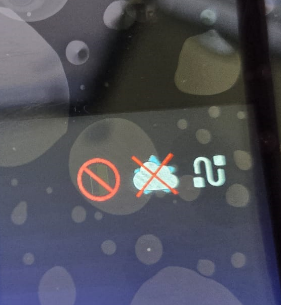
This indicates that the CLUe firmware is installed on the device, but the certificate has not been applied. In this case, the certificate must be reissued and applied to the device.
There are two ways to do this.
One method is to contact the CLUe development team to obtain the certificate file for the device and apply it via USB. Since only the certificate is being updated, this process does not take long.
The other method is to apply the Auto Update firmware, allowing the device to connect to the CLUe server and automatically download and install both the main firmware and the certificate.
In this case, the device must be in a state where it can connect to the CLUe server, and sufficient network bandwidth must be available. This is because the Auto Update firmware proceeds in three stages: firmware upgrade, main firmware download and installation, and certificate download and installation. The main firmware can be several hundred megabytes in size, so depending on network speed, the download and installation process may take a significant amount of time. If it takes too long, the installation may fail.
4. No Door Settings
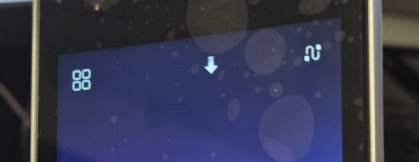
The icon below indicates that no door has been configured in the portal. Management through CLUe relies on user synchronization based on the Door ID, so creating doors and assigning devices is mandatory.
If this icon appears, you need to configure the device for the door and then verify whether the icon disappears.