
What is CLUe Visitor?
CLUe Visitor is an additional service provided by the CLUe platform. It enables visitor management by facilitating communication between the CLUe Visitor service and the server while the device is connected to CLUe.
Therefore, to use CLUe Visitor, the device must first be integrated with the CLUe platform.
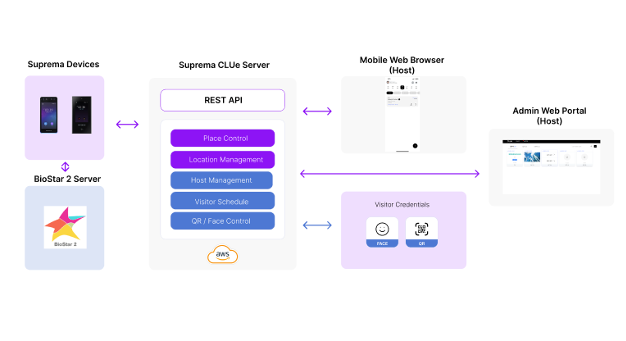
CLUe Visitor working with BioStar 2
CLUe Visitor can be used in conjunction with BioStar 2. In this case, the device connects to both CLUe and BioStar 2 in a multi-connection setup. The device operates based on the standard BioStar 2 functionalities, and communication with CLUe Visitor occurs only when a QR code is scanned. Other credential inputs, such as face, fingerprint, and RF card can be used as they are with BioStar 2.
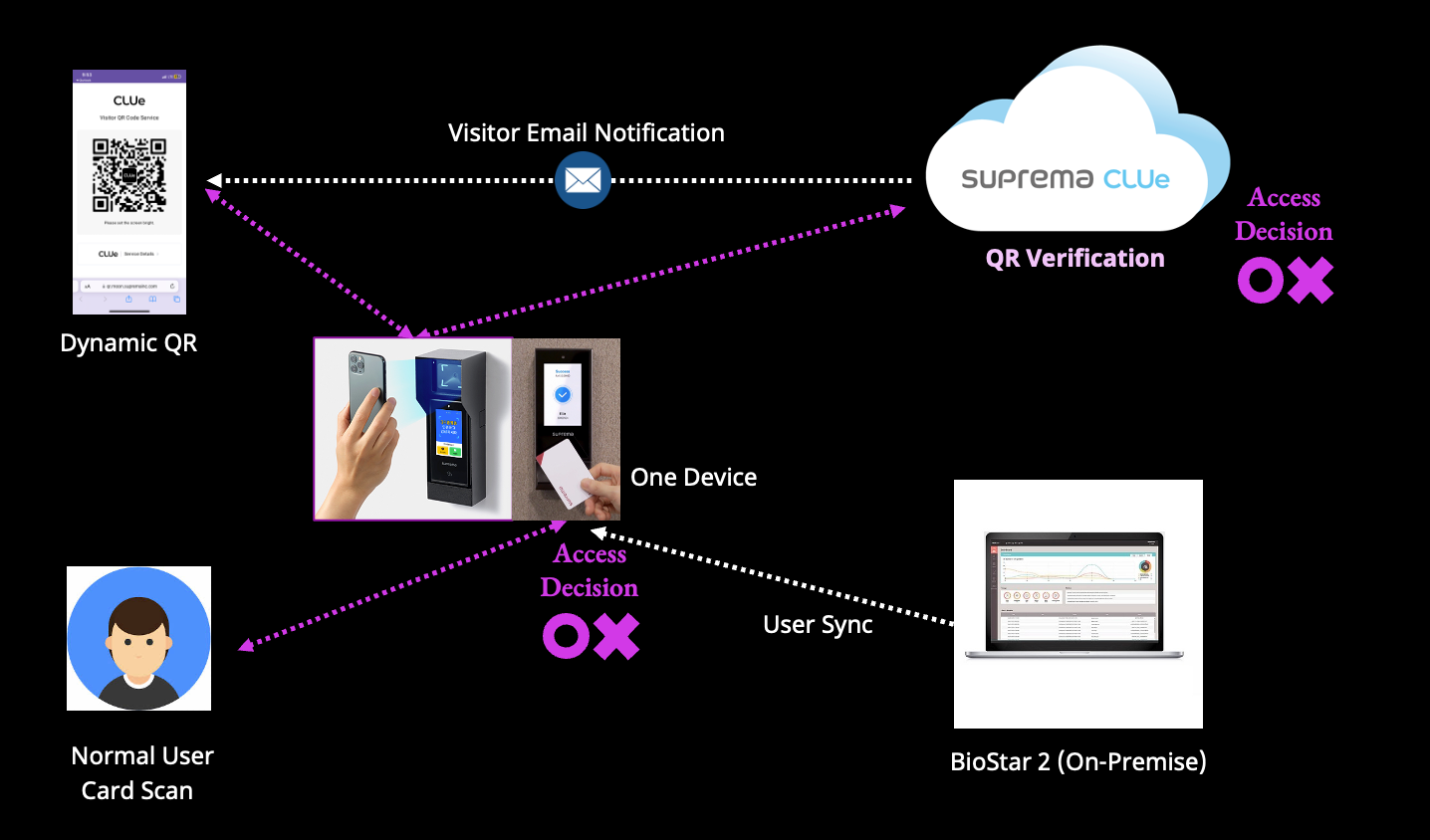
CLUe Visitor Supported Devices
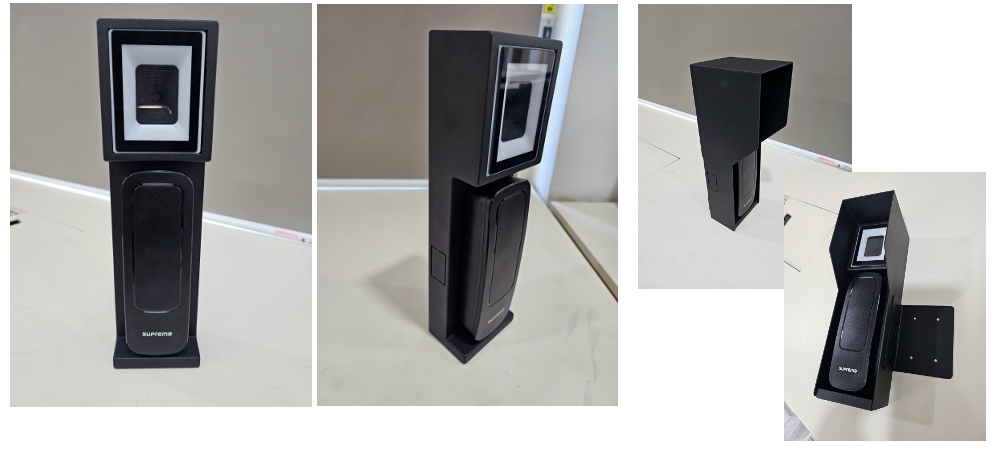
Basically, all CLUe supported devices can be used for CLUe Visitor as long as the devices support built-in camera QR scan or are connected to the external QR scanner.
- Bulit-in Camera/External QR scanner: BioStation 3, XStation 2
- External QR scanner: XPass 2, BioEntry W3
External QR scanner is connected through USB-C interface for BioStation 3 and XStation 2. Others are connected through RS485 serial interface. Therefore, the serial interface connection will limit the use case of wiring additional Secure IO devices as slave devices.
CLUe Visitor Basic Concept
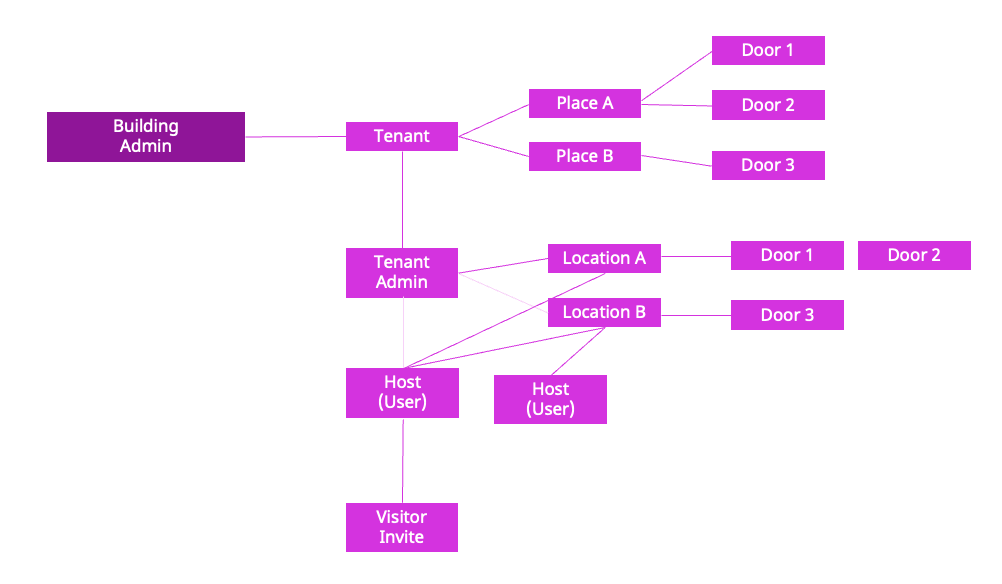
Like CLUe, CLUe Visitor also follows a hierarchical structure. This is designed to support multi-tenant environments within a building, allowing each tenant company to have designated hosts and send invitations.
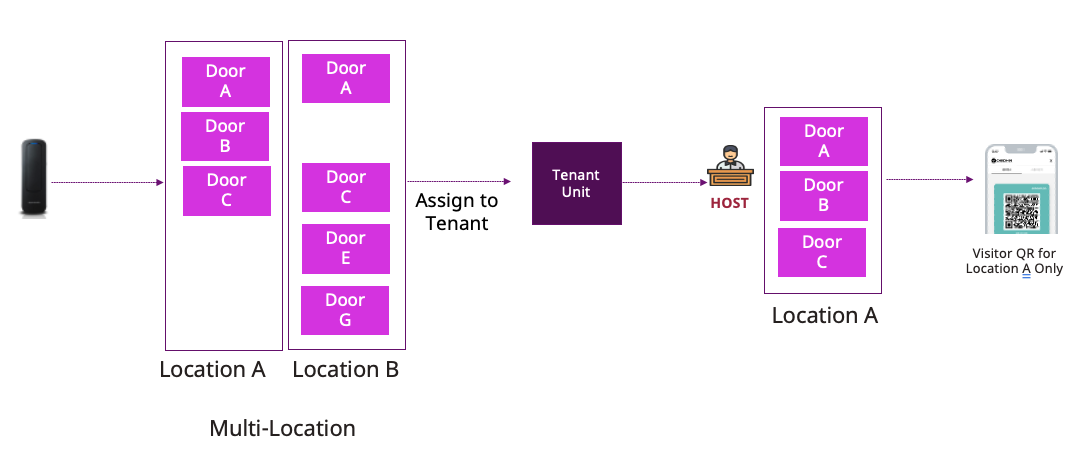
With this structure, the building admins can create tenant companis and define the access areas for each one. Then, tenant company admins can create specific locations within the assigned doors and flexibly allocate them to individual hosts, all within the access boundaries set by the building administrator.
Simply put, shared areas can be configured so that multiple tenant companies are allowed to invite visitors, while private areas can be restricted so that only the respective tenant company can send visitor invitations.
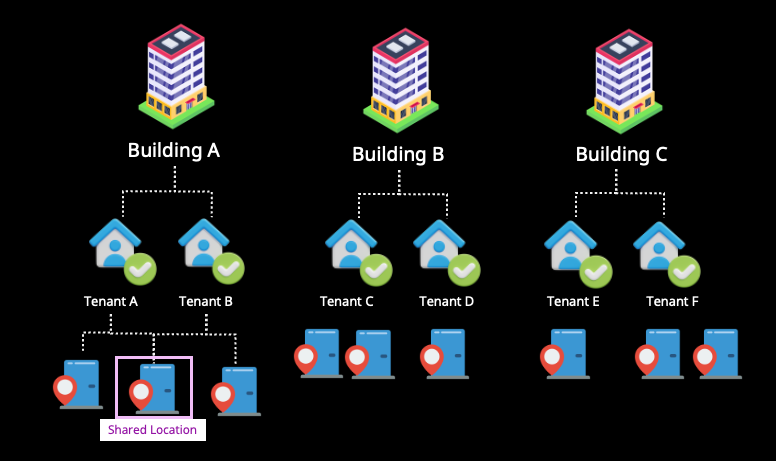
Therefore, as shown in the diagram below, the branch admin who creates the building is responsible for assigning place groups to the building and inviting the building admin. The building admin is able to create multiple tenant companies and allocate specific places within the assigned place group to each tenant. This structure allows for flexible and scalable configurations, even in buildings with multiple tenants.
How to invite Visitors?
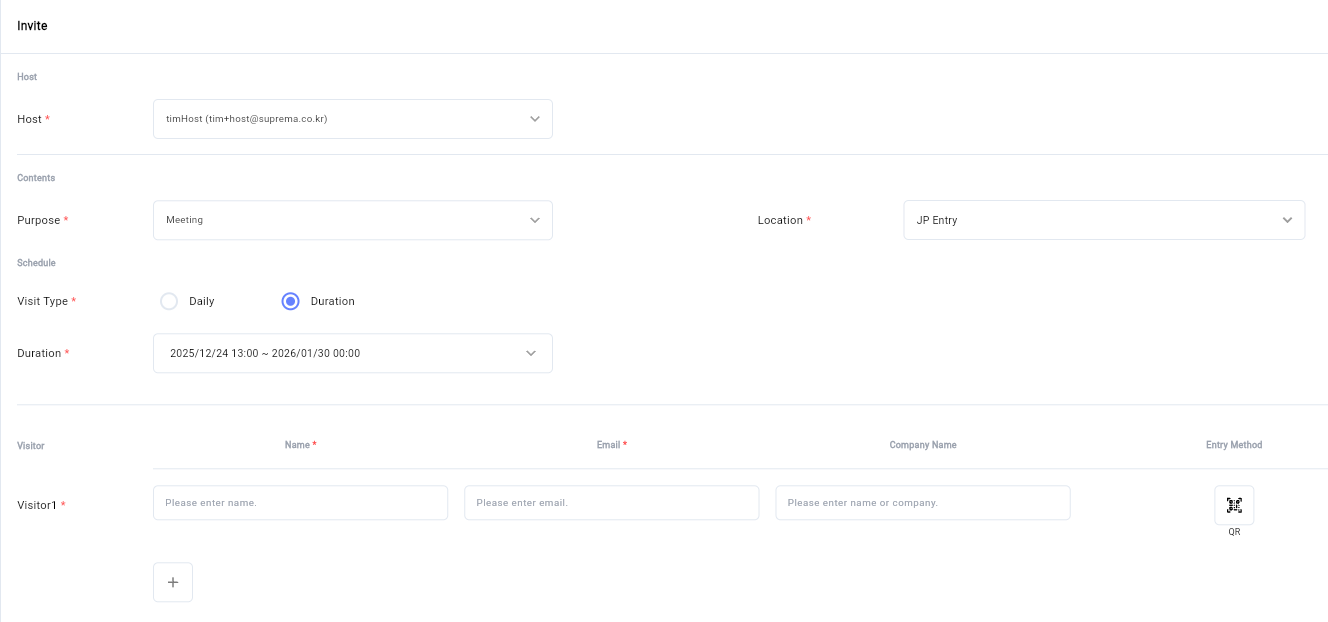
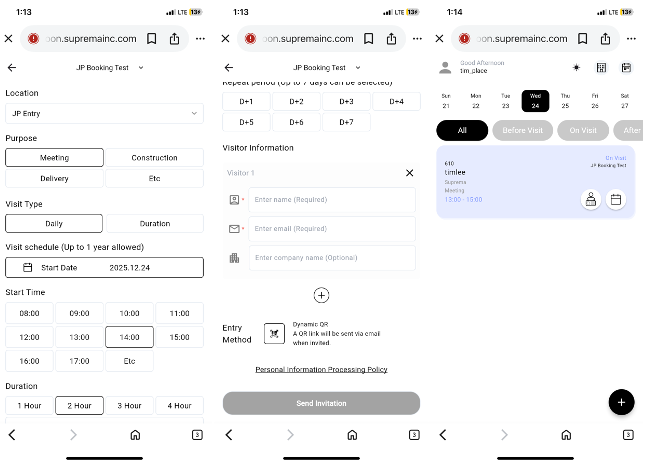
Hosts can invite visitors by entering the company name, name, and email address at authorized access points. If there are accompanying guests, multiple visitors can be invited at the same time.
Visits can be configured either for entry at a specified time on a given day, or with flexible access within a defined period.
Once invitations are created, the visit date and time as well as the meeting schedule can be easily reviewed at a glance through the calendar view.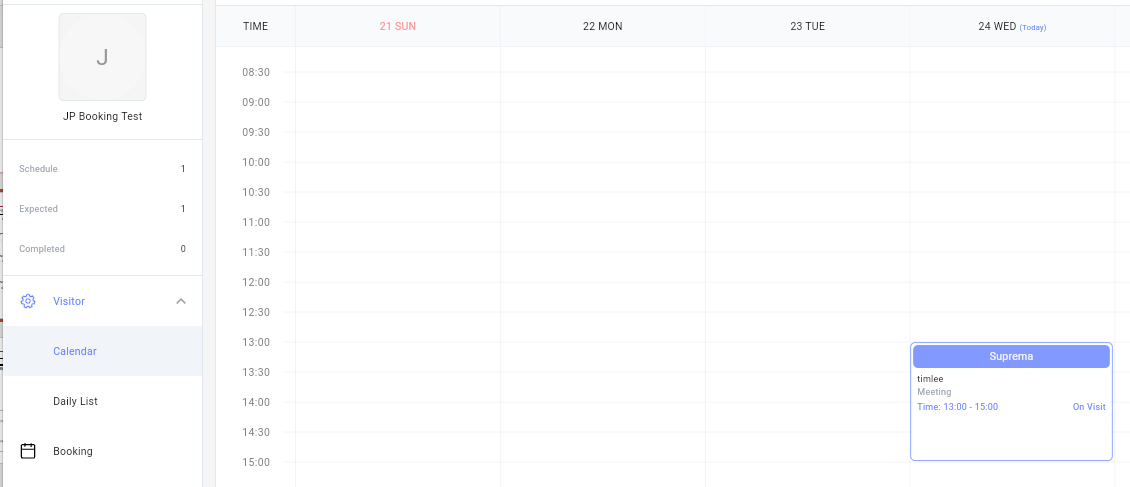
Visitor Dynamic QR Activation
Visitors can activate a dynamic QR code by clicking the link provided in the email. The dynamic QR code automatically refreshes every 5 seconds without requiring any manual action. This prevents unauthorized use by others.
In addition, the QR link can be activated only once, making it impossible to forward the email and share the QR code with others.
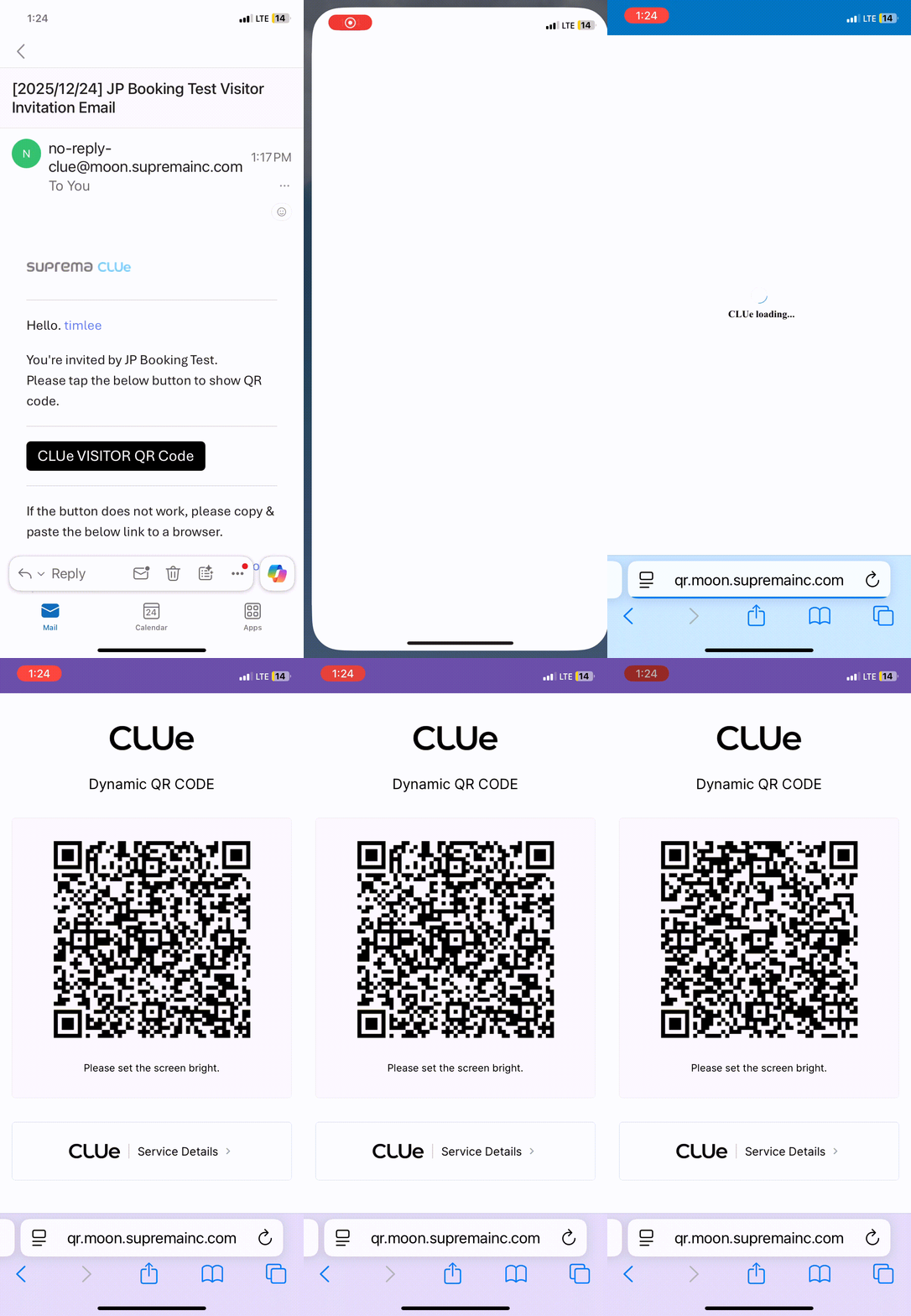
Visitor can access to authorized doors within the approved time window by scanning the QR code at the device.
Visitor Entry Access Logs & Alert
When a visitor checks in, an alert notification email is sent, allowing the host to be informed that the visitor has arrived.
In addition, by viewing the visit date list, the host can review the actual visit history and check the current status of each visit.
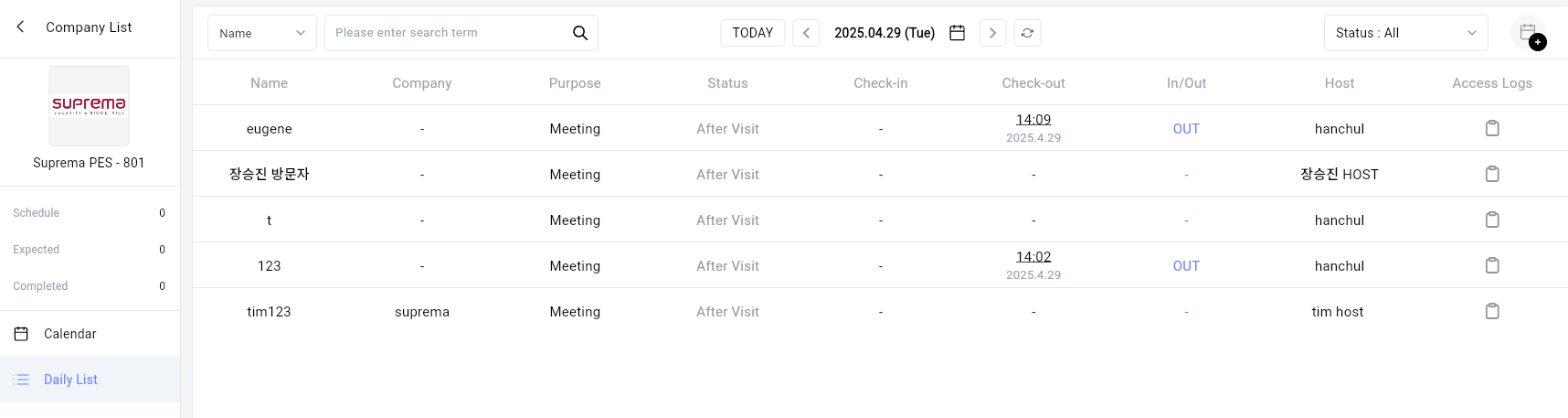
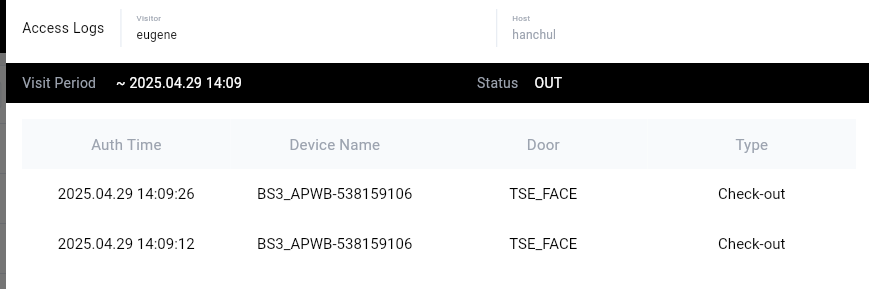
When check-in and check-out events occur consecutively, the latest check-in time will be used to update both the check-in and check-out timestamps, and the current IN/OUT status will reflect the most recent event. This design allows the system to accurately determine and intuitively display the visitor’s current presence status, even in cases where multiple entries and exits have occurred.