
This guide outlines the procedure for replacing an existing license and activating a new online license for the Suprema CCURE 9000 integration.
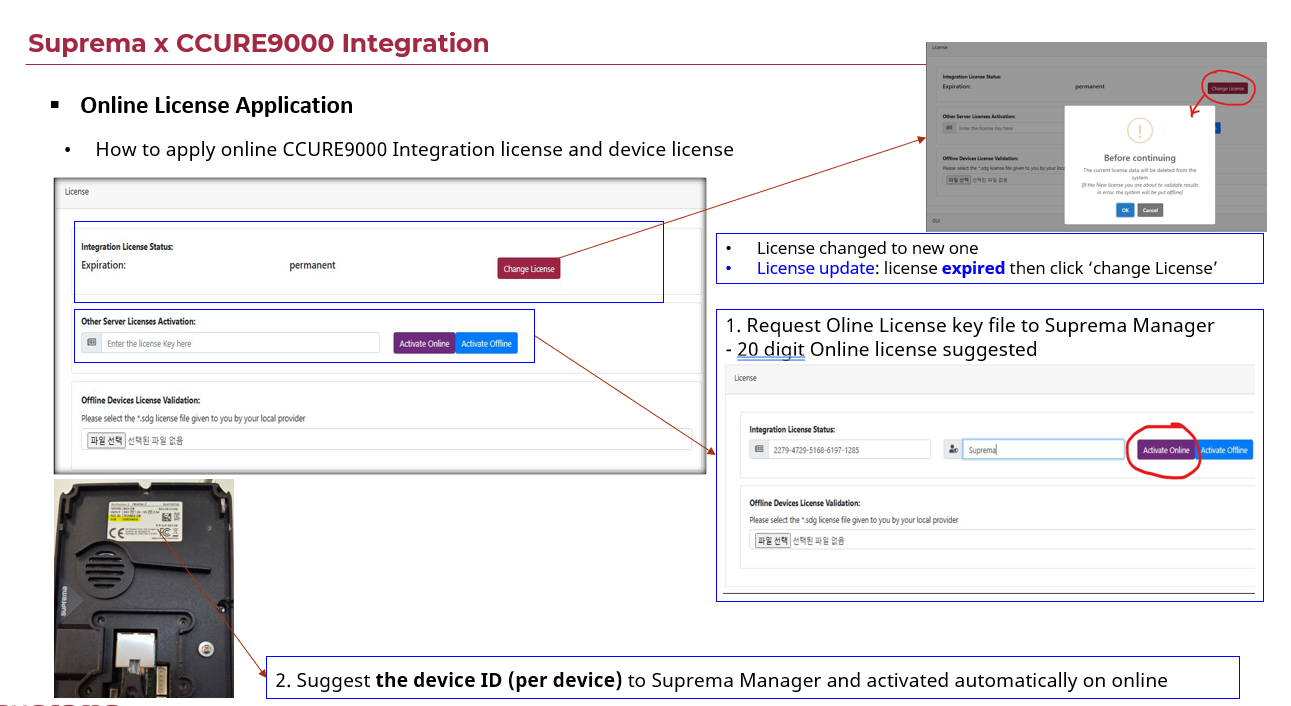
1. Replacing an Existing License
License Update/Expiration: If your current license has expired or needs to be replaced, navigate to the License menu and click the 'Change License' button.
Confirmation: A "Before continuing" warning dialog will appear.
Validation: Click 'OK' to proceed with the validation of your new license credentials.
2. Requesting and Issuing a New Online License
License Key Request: Contact your Suprema Manager to request a new online license key.
Key Format: The manager will issue a 20-digit alphanumeric online license key.
Activation: Enter the 20-digit key into the "Other Server Licenses Activation" field and click the 'Activate Online' button to complete the process.
3. Device License Activation
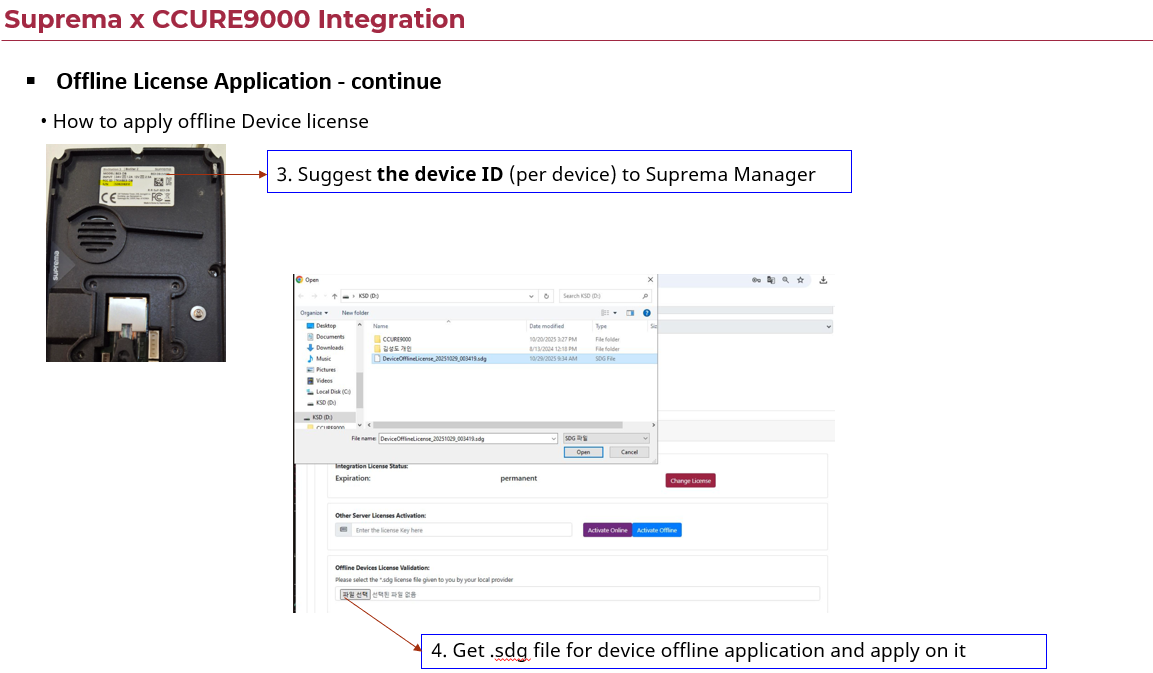
Identification: Identify the Device ID (per device) located on the physical product label.
Submission: Provide these Device IDs to your Suprema Manager.
Automatic Sync: Once the IDs are registered in the system, the device licenses will be activated automatically via the online server.
ㅇ Troubleshooting Tips
Network Status: Ensure the server has an active internet connection before clicking 'Activate Online'.
Version Consistency: Verify that the issued 20-digit key is compatible with your current software version (e.g., v1.8.6.x or v2.1).
Service Restart: After successful activation, it is highly recommended to restart the integration service to ensure all changes are applied correctly.