
Summary
BioStar Air sends SMS alerts only to the mobile number registered in the administrator account. It does not use the mobile number in a user's details.
To receive SMS alerts, all three requirements must be met:
- Sufficient SMS credits are available.
- A mobile number is registered in the administrator account.
- SMS notifications are enabled for the administrator account.
Details
Symptom
- Send By > SMS is enabled in the alert, but no SMS alert arrives.
- Email or app notifications may still arrive normally.
Cause
- Alert recipients (Target) are administrators, not regular users.
- BioStar Air sends SMS to the number in Settings > Account > Mobile Number of the administrator account.
- The mobile number in a user's details (Users menu) is not used for SMS alerts.
- If the administrator account shows Unregistered, no SMS is sent.
Terms
- Target: The administrator or administrator group that receives the alert. Example: All Masters
- SMS credits: The usage units consumed when an SMS is sent. If credits run out, no SMS is sent.
Resolution Steps
Step 1: Check the alert settings and Enable SMS notifications for the administrator account
- In the Settings window, select the Alert & Report tab.
- Confirm that Target includes the administrator who needs the SMS.
- Also, confirm the Door and Condition as well.
- Confirm that the SMS toggle under Send By is on.
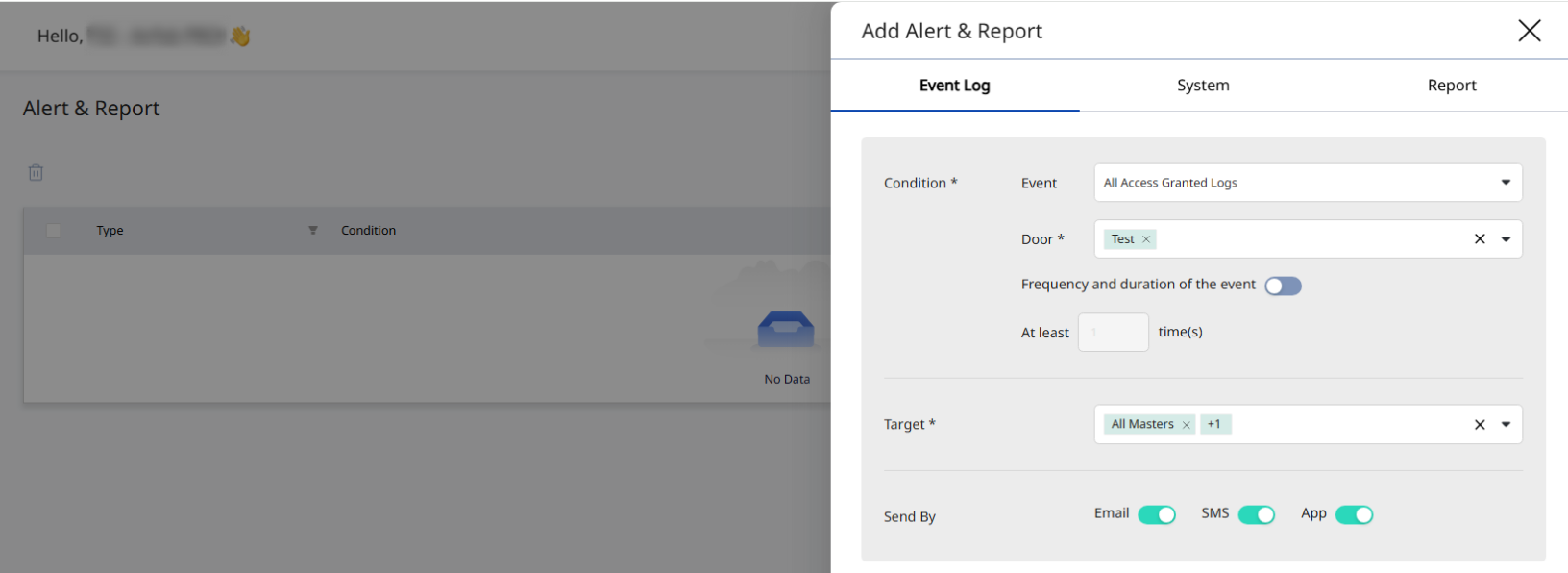
Figure 1. Edit Alert screen. Set an administrator as Target and turn on SMS under Send By.
Step 2: Register a mobile number in the administrator account
- Click the account icon in the top-right corner.
- In the Settings window, select the Account tab.
- Check the Mobile Number field.
- If it shows Unregistered, click the + button.
- Enter the mobile number and complete registration as shown on screen.
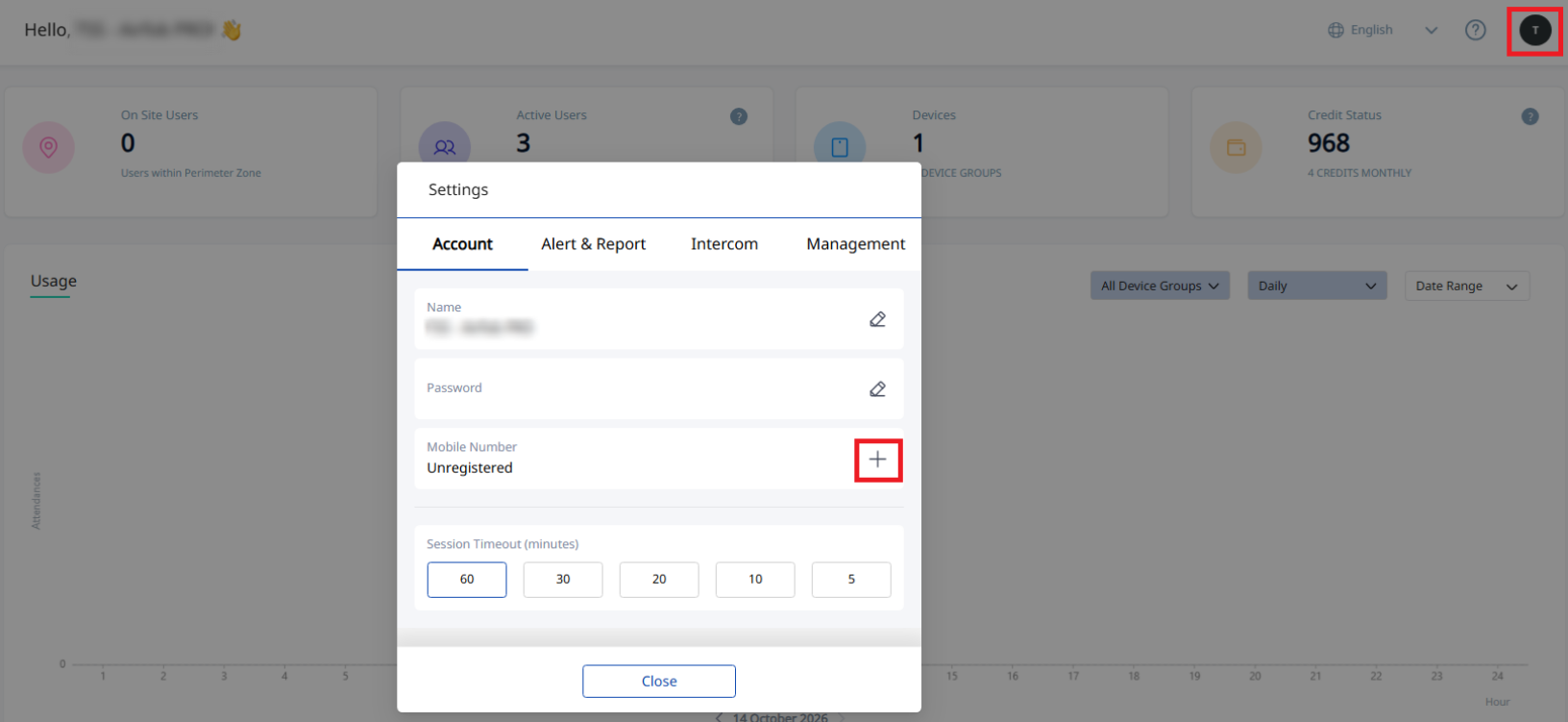
Figure 2. Account icon (top right) > Settings > Account tab. If Mobile Number shows Unregistered, click the + button.
Step 3: Check SMS credits
- Check the remaining credits in Credit Status on the dashboard.
- If credits are low, add more credits.
Step 4: Test
- Trigger an event that matches the alert condition.
- Confirm that the registered mobile number receives the SMS.
Notes
- Register a mobile number in each administrator account that must receive SMS alerts.
- If Target is an administrator group (for example, All Masters), only administrators with a registered number receive SMS.
- To send SMS alerts to a regular user, that user needs administrator rights.
- If email alerts arrive but SMS alerts do not, check Steps 2 to 4 first.
- If SMS alerts still do not arrive, contact technical support. Include the administrator account information and a screenshot of the alert settings.